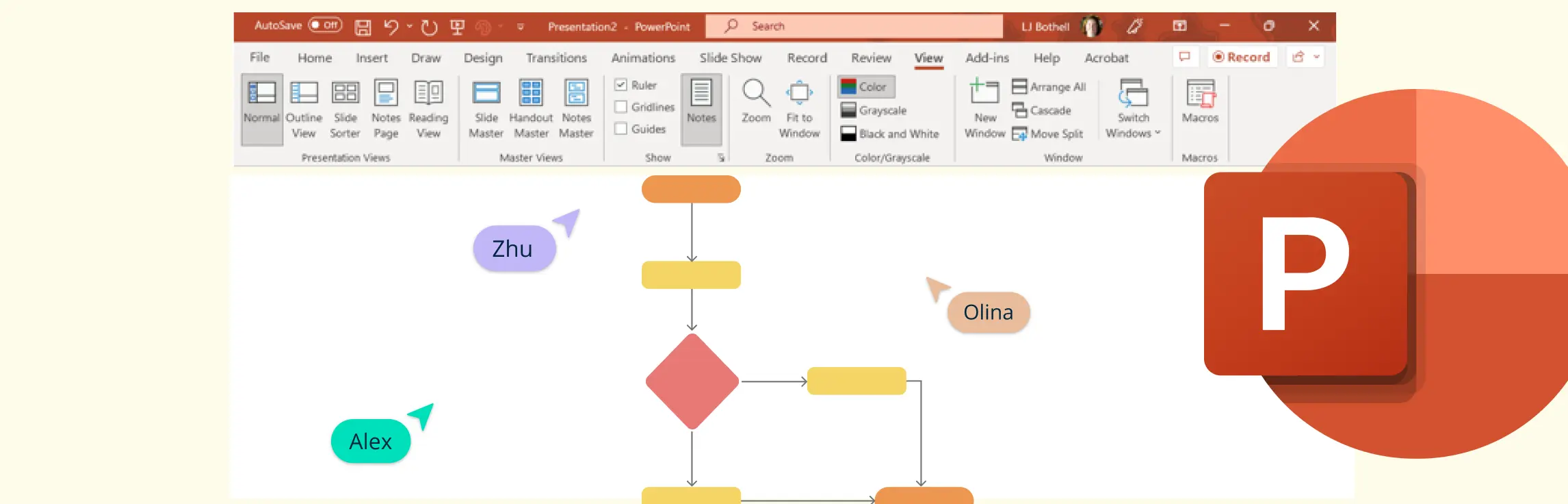
PowerPoint includes shapes, connectors, SmartArt, and formatting tools that can be used to create a basic flowchart directly on a slide. This guide explains two methods for making a flowchart in PowerPoint, along with formatting, sharing, and export tips. It also explains when a dedicated flowchart tool may be more practical for a process diagram that needs ongoing review and maintenance.
What Is a Flowchart?
A flowchart is a visual diagram that represents a process or system using shapes, symbols, and arrows to depict steps and their sequence. Common shapes include rectangles for processes, diamonds for decisions, and arrows to indicate flow direction. Flowchart symbols help standardize how different actions are represented, making complex processes easier to understand and communicate. The main types of flowcharts include process flowcharts, data flowcharts, workflow diagrams, and system flowcharts, each designed to illustrate specific aspects of processes and systems.
How to Make a Flowchart in PowerPoint
Method 1: Manually Creating a Flowchart in PowerPoint
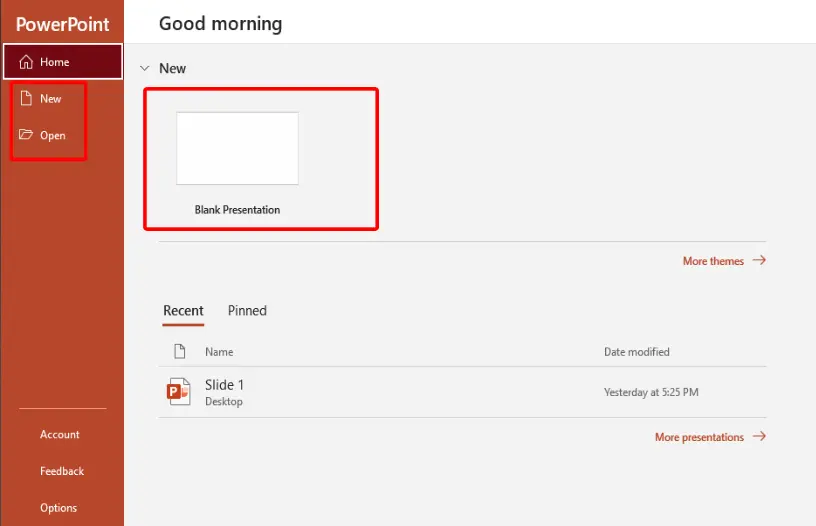
Step 1: Open PowerPoint and Set Up Your Slide
- Launch PowerPoint and open a new presentation.
- Select a blank slide for a new workspace.
- Adjust the layout if necessary by going to Home > Layout and selecting ‘Blank.’
Step 2: Access Flowchart Shapes
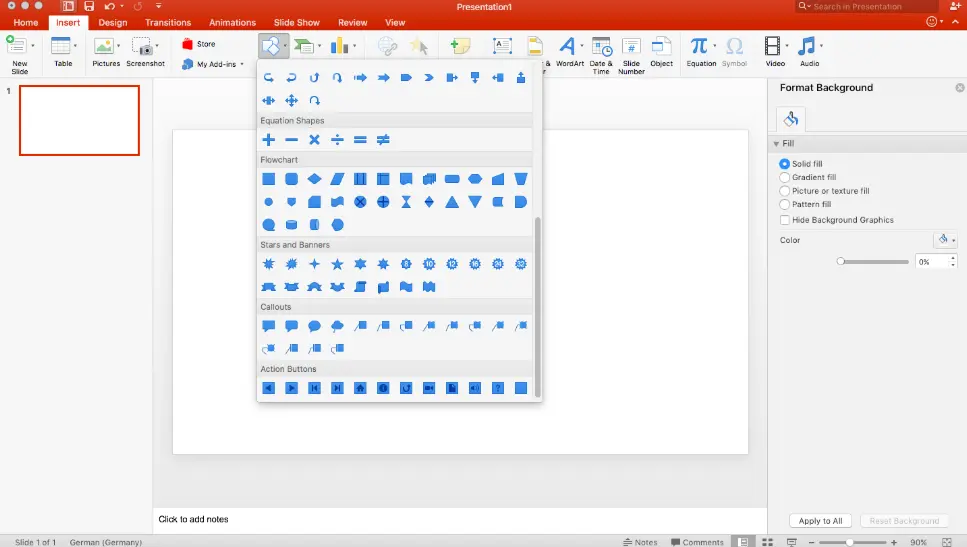
- Go to the Insert tab.
- Select Shapes to access PowerPoint’s collection of shapes.
- Scroll down to the “Flowchart” section, which includes shapes like:
- Terminator for start/end points.
- Process for general steps.
- Decision for branching points.
- Arrow for connecting elements.
Step 3: Draw Your Flowchart
- Click on a shape to select it, then click and drag on the slide to draw it.
- Use text boxes to label each shape with appropriate descriptions.
Step 4: Connect Shapes with Arrows
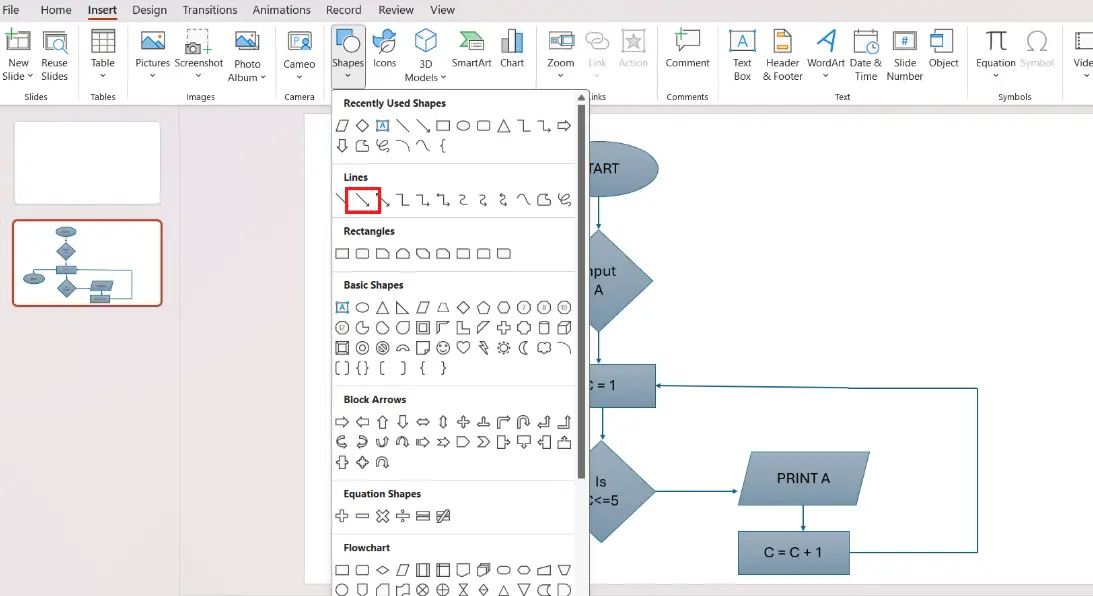
- Return to Insert > Shapes and choose an arrow style.
- Draw arrows between the shapes to represent the process flow.
- Use straight, elbow, or curved connectors to enhance clarity.
Step 5: Format the Flowchart
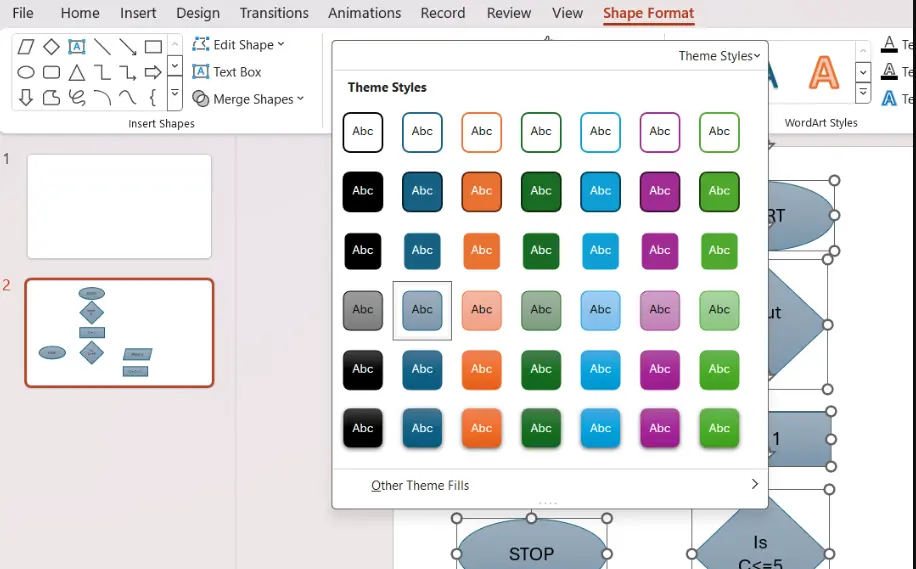
- Customize each shape and arrow using the Shape Format tab:
- Change colors, borders, and styles for distinction.
- Use alignment tools (Format > Align) to neatly arrange the shapes.
- Group shapes for easier movement and editing.
Method 2: Using SmartArt to Create a Flowchart
Alternatively, PowerPoint’s SmartArt feature simplifies flowchart creation:
- Go to Insert > SmartArt.
- Choose a diagram from the “Process” category that suits your flowchart.
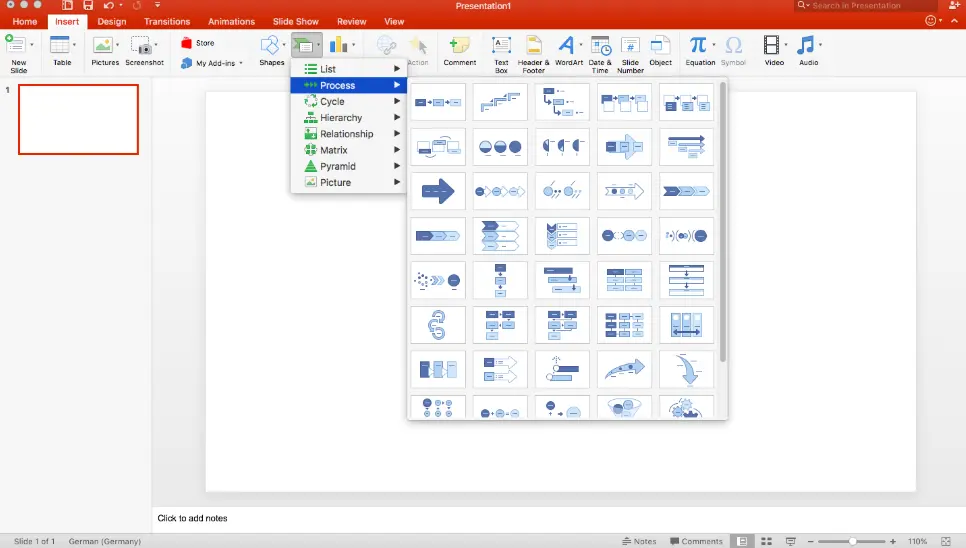
- Click on shapes to add text and use the pane to add or remove steps.
- Format the SmartArt design using the Design and Format tabs for customization.
Tips for Enhancing Your Flowchart
- Keep it Simple: Avoid clutter by focusing on essential steps and decisions.
- Use Consistent Shapes: Stick to standardized flowchart shapes for clarity.
- Color Coding: Use color variations to distinguish between different types of actions or processes.
- Legible Text: Ensure text is readable by selecting appropriate font sizes and styles.
- Alignment and Spacing: Use alignment tools to maintain a structured and professional look.
Saving and Sharing Your Flowchart
- To save your presentation, go to File > Save As and choose the desired format.
- Export as an image by selecting File > Save As > JPEG/PNG if you need the flowchart separately.
- For co-authoring, save the presentation to OneDrive or SharePoint, select Share, and give collaborators edit access.
Limitations of Using PowerPoint for Flowcharts
PowerPoint is practical for basic flowcharts that will appear in a presentation, but consider these limitations for larger or frequently updated workflows:
Manual maintenance for complex diagrams: PowerPoint provides connectors, alignment commands, guides, and—on supported web versions—Auto Fix. However, keeping a large flowchart readable as steps and branches change can still require considerable manual arrangement.
Slide-based working area: A flowchart must fit within the slide or be divided across slides, which can make an end-to-end workflow harder to review in one view.
SmartArt trade-offs: SmartArt is quick for simple sequences, but manual shapes and connectors are usually needed for detailed branching logic, loops, or specialized notation.
Collaboration requirements: PowerPoint supports concurrent editing and comments when a compatible file is stored in OneDrive or SharePoint and collaborators have the appropriate access. The experience and available features depend on the PowerPoint version and account.
Limited process context: A presentation can explain a workflow, but its shapes are not designed as structured process records containing fields such as owners, status, duration, or linked subprocesses. Teams may need to maintain that context separately.
Helpful Resources
Collaborative flowchart software to map processes, visualize user flows and workflows, and document processes
This flowchart tutorial will teach you all you need to know about flowcharts.
This guide will walk you through everything you need to know about flowchart symbols, their usage, best practices, and common mistakes.
Why Consider Using a Specialized Tool for Flowcharting?
A dedicated flowchart maker can be more practical when a workflow has many branches, spans several teams, or needs frequent review. Creately combines editable flowchart templates and shape libraries with real-time collaboration, comments, @mentions, ownership data, and connected notes, links, and files. This helps a process owner maintain the diagram as living documentation. Formal approval records should still remain in the system your organization uses for governance.
Why Use Creately to Create Flowcharts?
Purpose-Built Flowchart Software: Creately’s flowchart software provides editable flowchart shapes, connectors, templates, and an infinite canvas for creating and maintaining simple or detailed workflows.
AI-Assisted Diagram Creation: Creately AI can generate an editable flowchart draft from a plain-language process description, including activities, decisions, and connections. Review and refine the generated diagram with the people who perform the work before using it as process documentation.


Presentation Mode: Present a flowchart directly from the workspace to walk stakeholders through process stages, decisions, and handoffs without rebuilding the diagram as slides.
Effortless Drag-and-Drop Interface: The intuitive drag-and-drop functionality makes designing and editing flowcharts straightforward, catering to both beginners and professionals handling detailed workflows.
Smart Connectors and Layout Tools: Connectors remain attached as shapes move, while alignment and layout tools help keep process flows readable as the diagram changes.
Real-Time Collaboration: Multiple users can edit the same diagram simultaneously. Comments and @mentions allow stakeholders to discuss specific steps, and the process owner can incorporate agreed changes.
Customizable Templates: Gain access to an extensive library of ready-to-use flowchart templates tailored for various scenarios, including business process mapping, system design, and project planning, enabling quick and easy starts.
Flexible Sharing and Export Options: Share a workspace with the appropriate access or export a diagram as PDF, PNG, or SVG for use in presentations and documentation.
These capabilities help teams create a flowchart, review it together, connect supporting process context, and keep the visual current as roles, systems, or handoffs change.
Creately’s Ready-Made Flowchart Templates
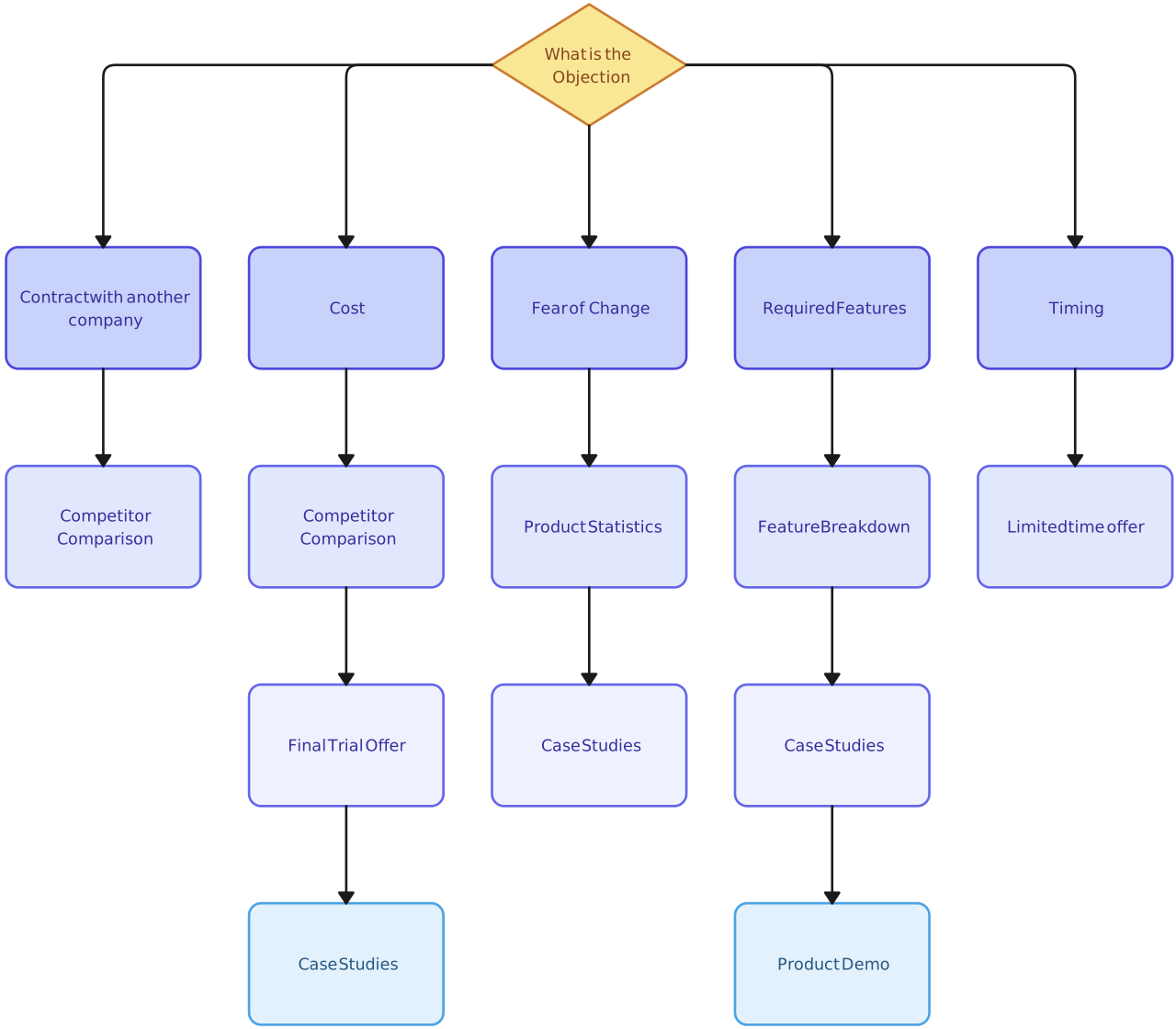


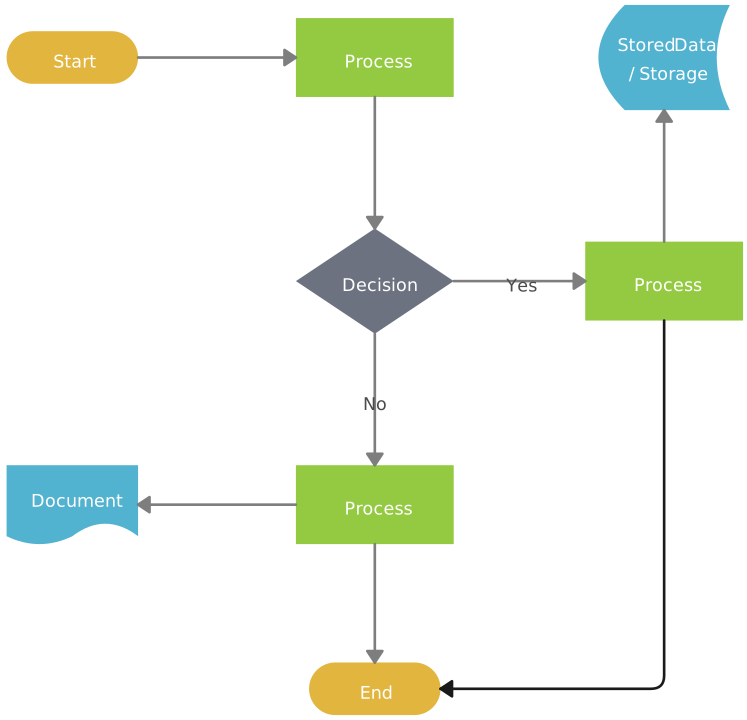
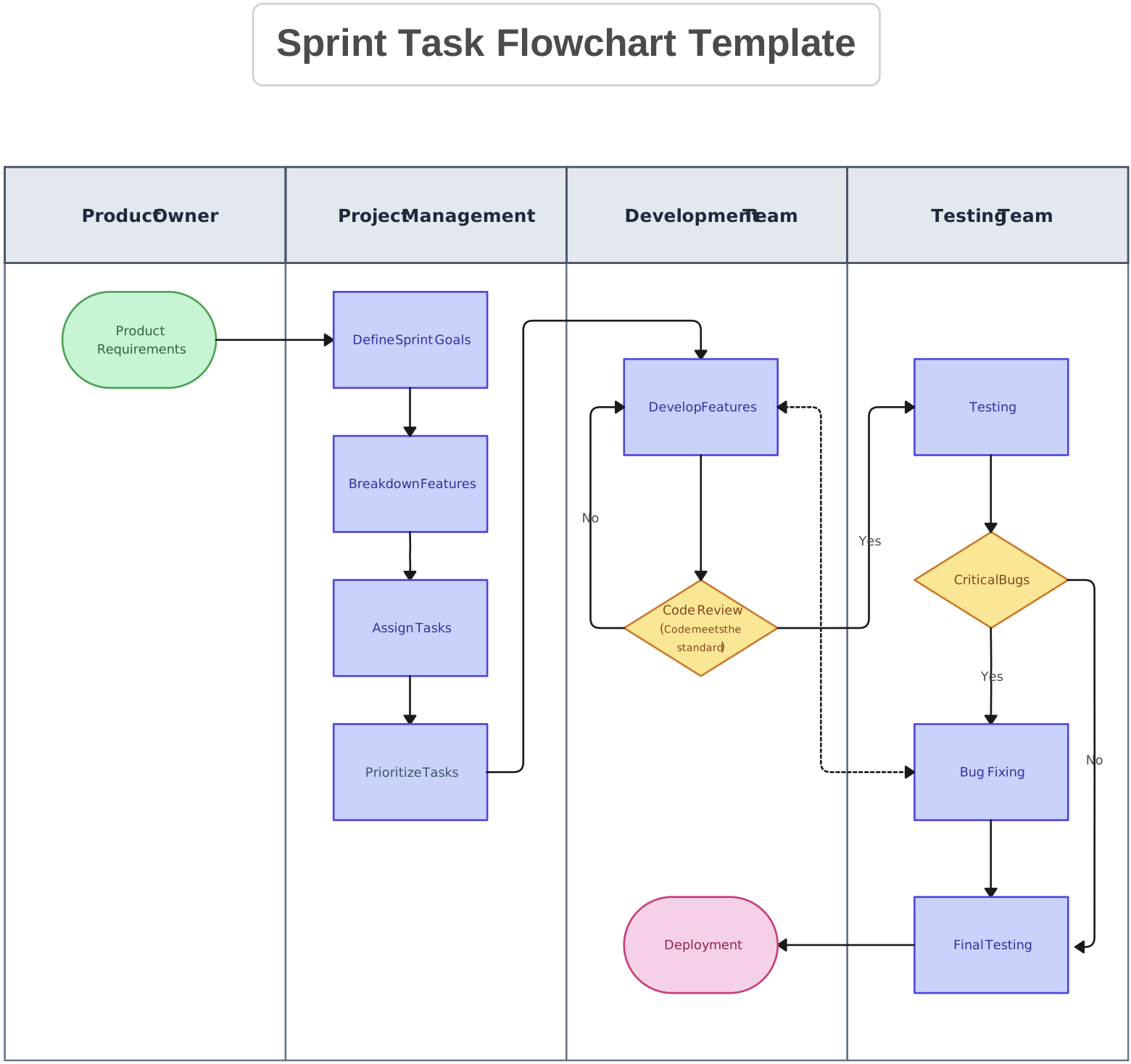
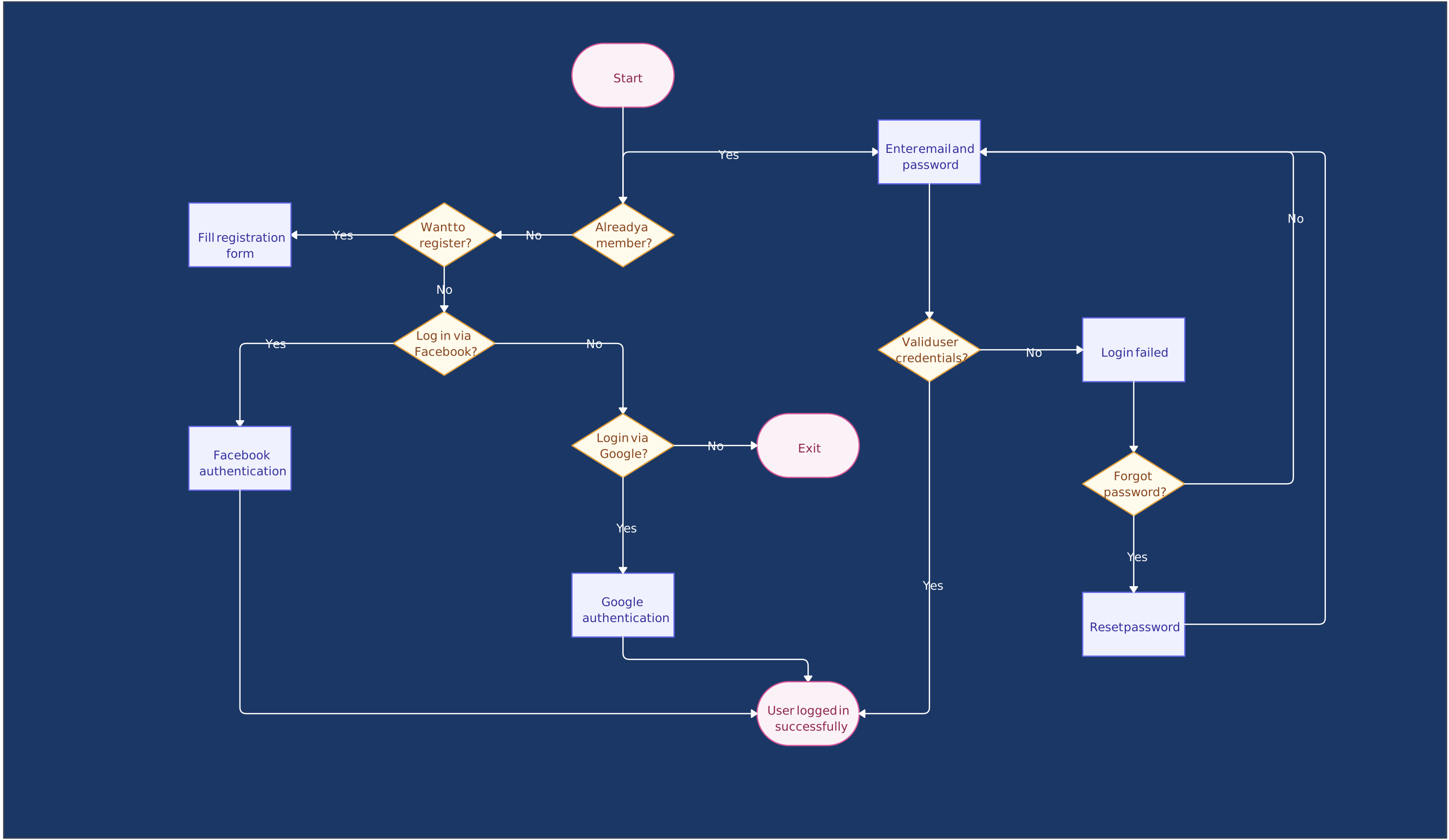
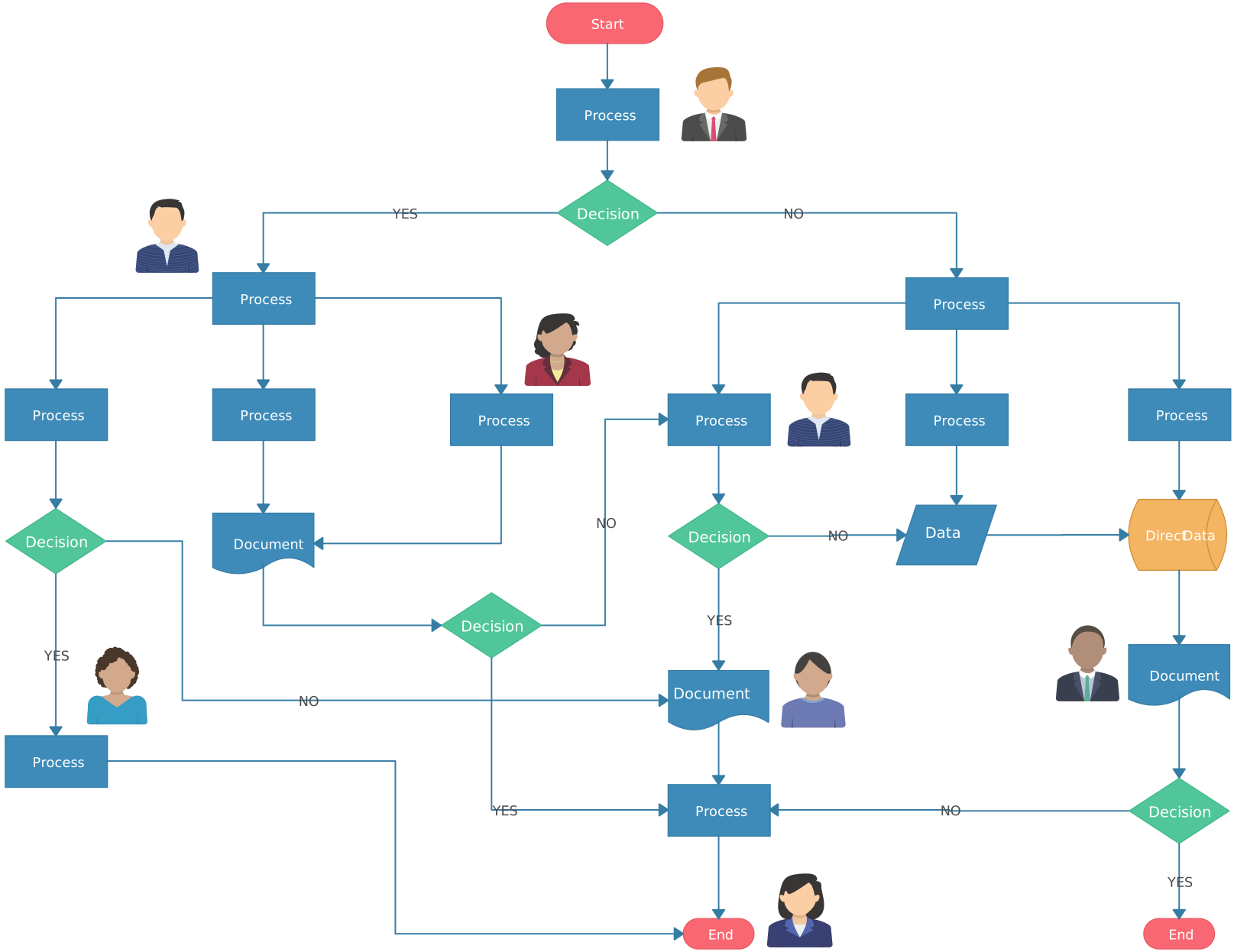

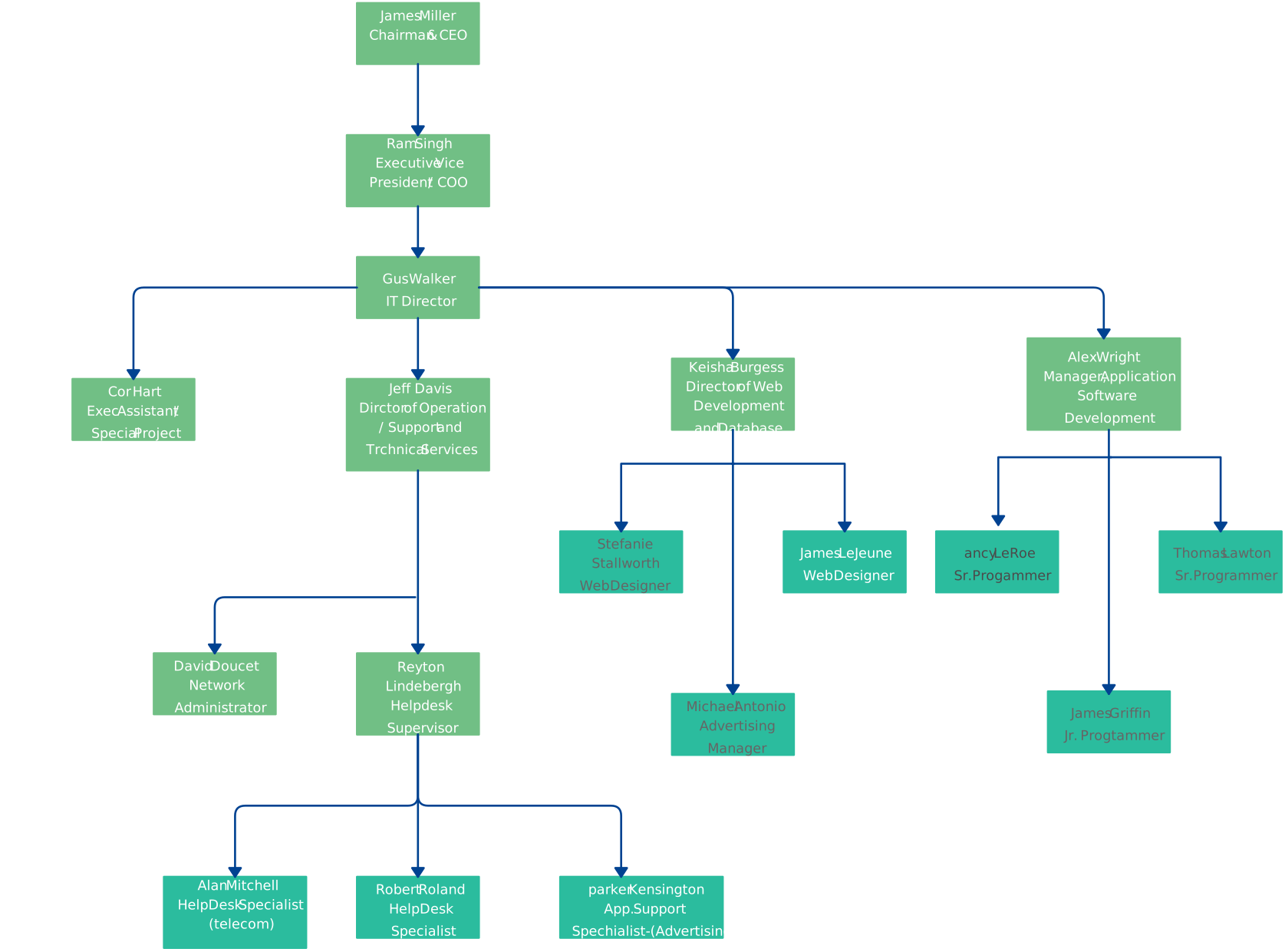
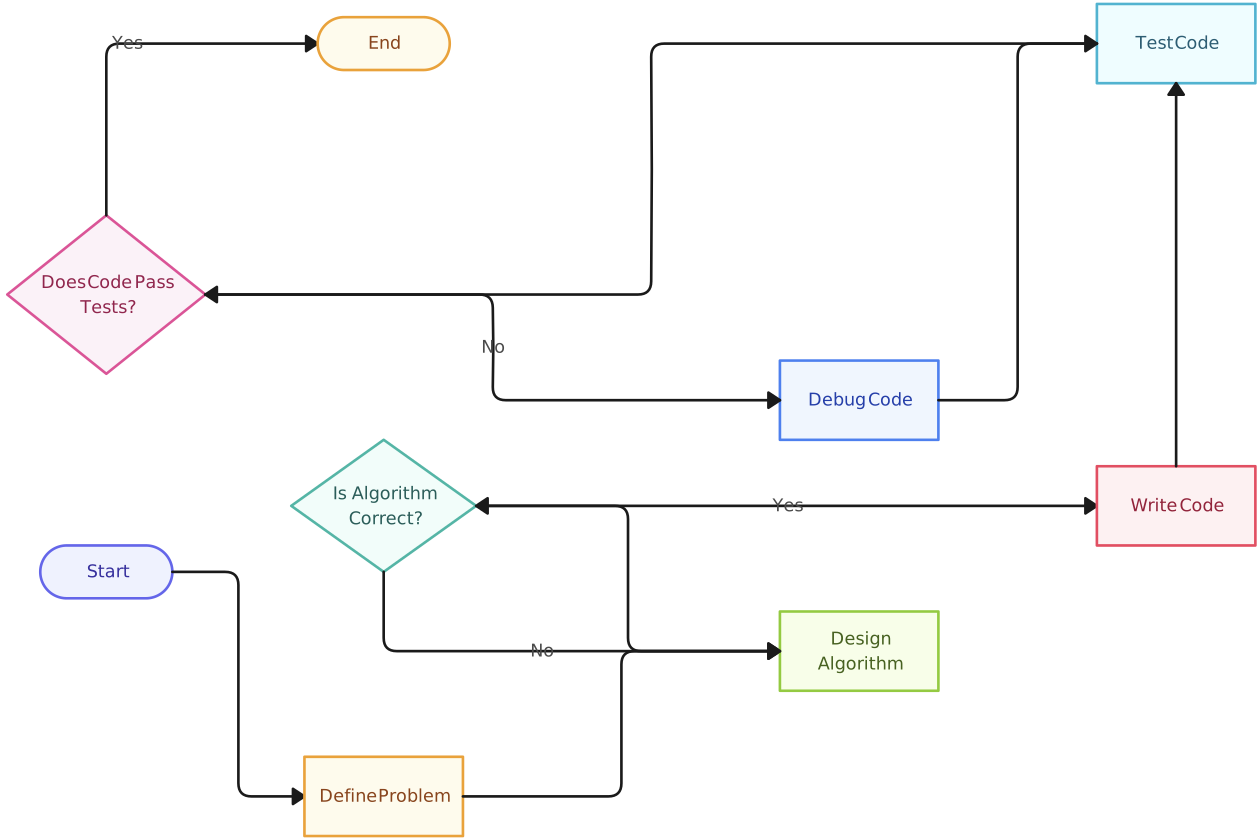
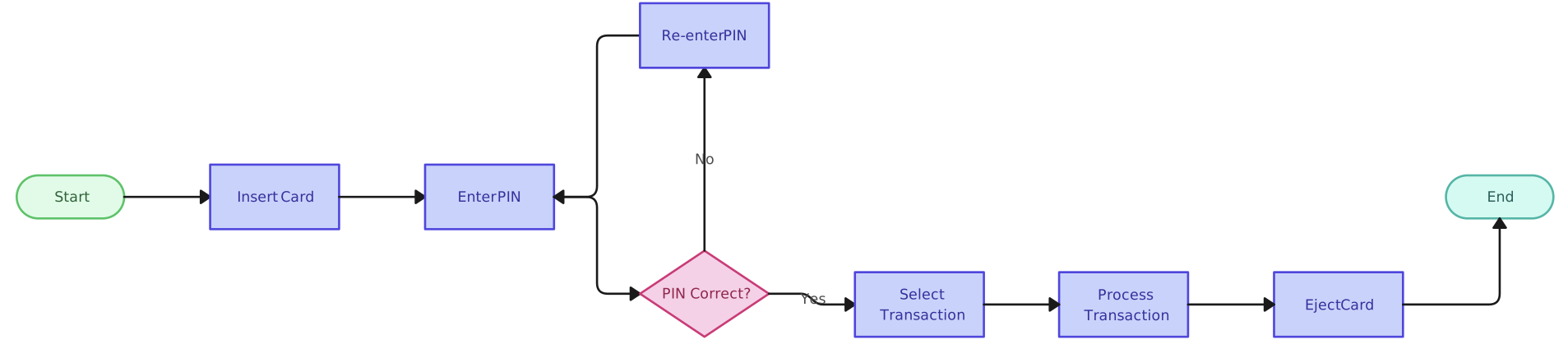
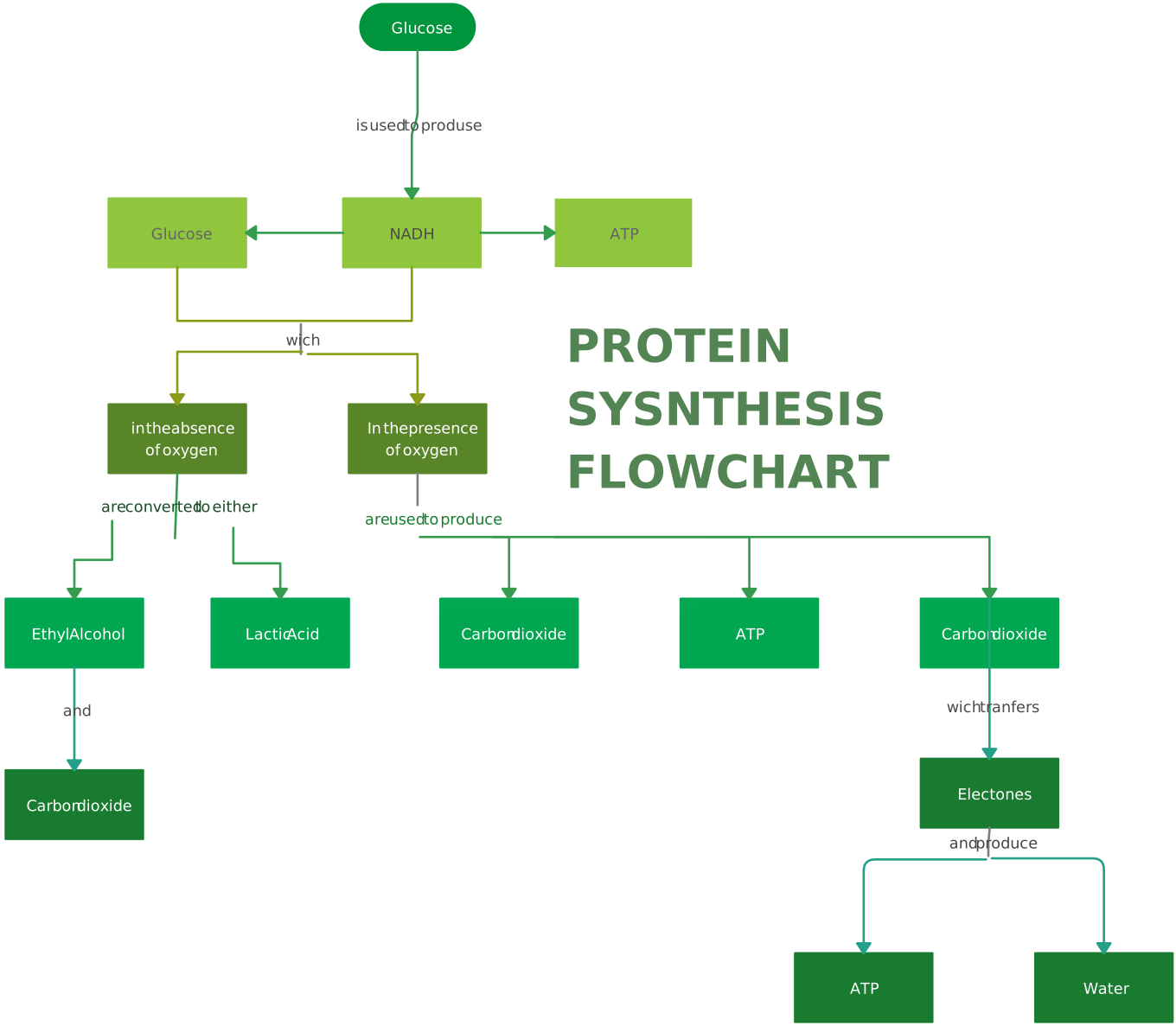
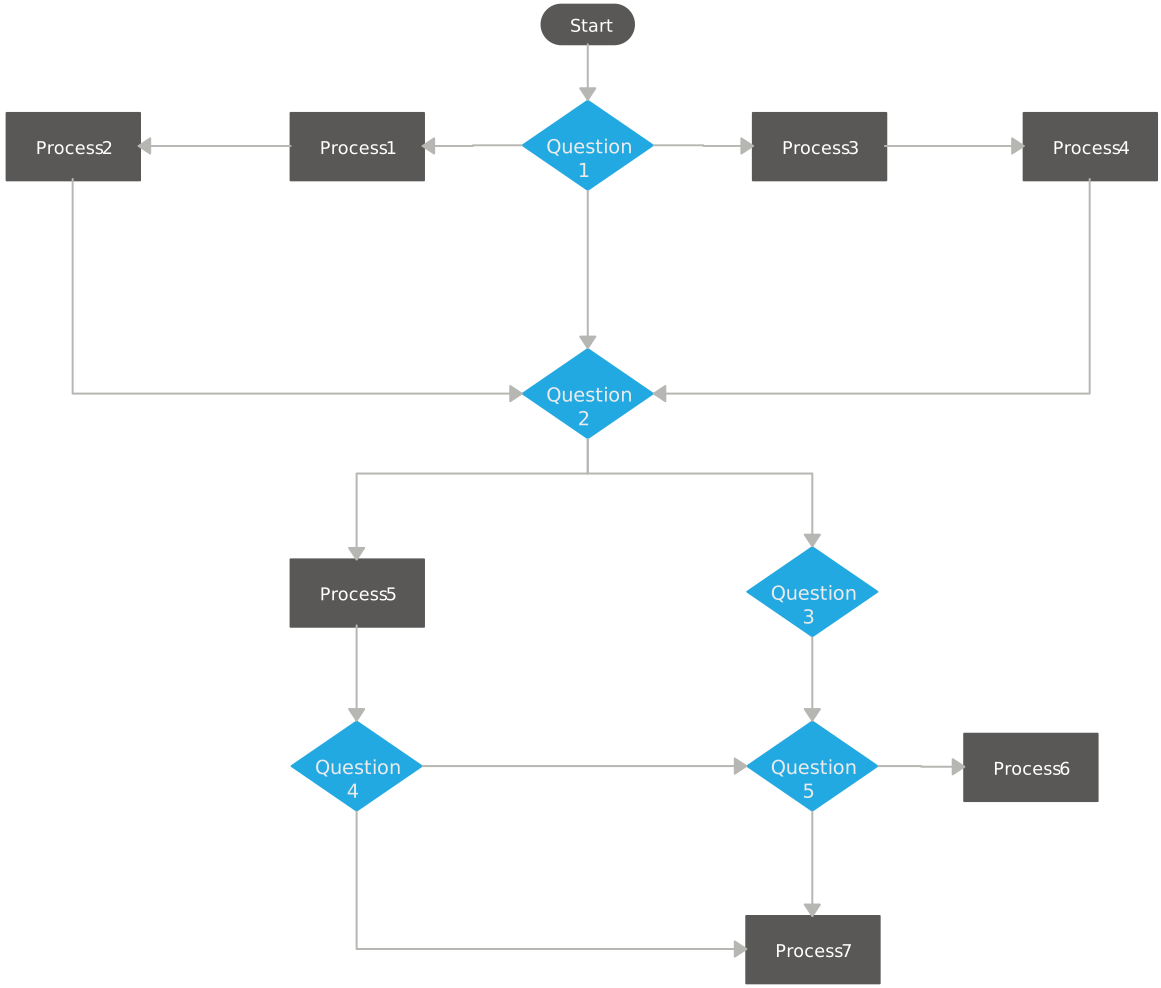
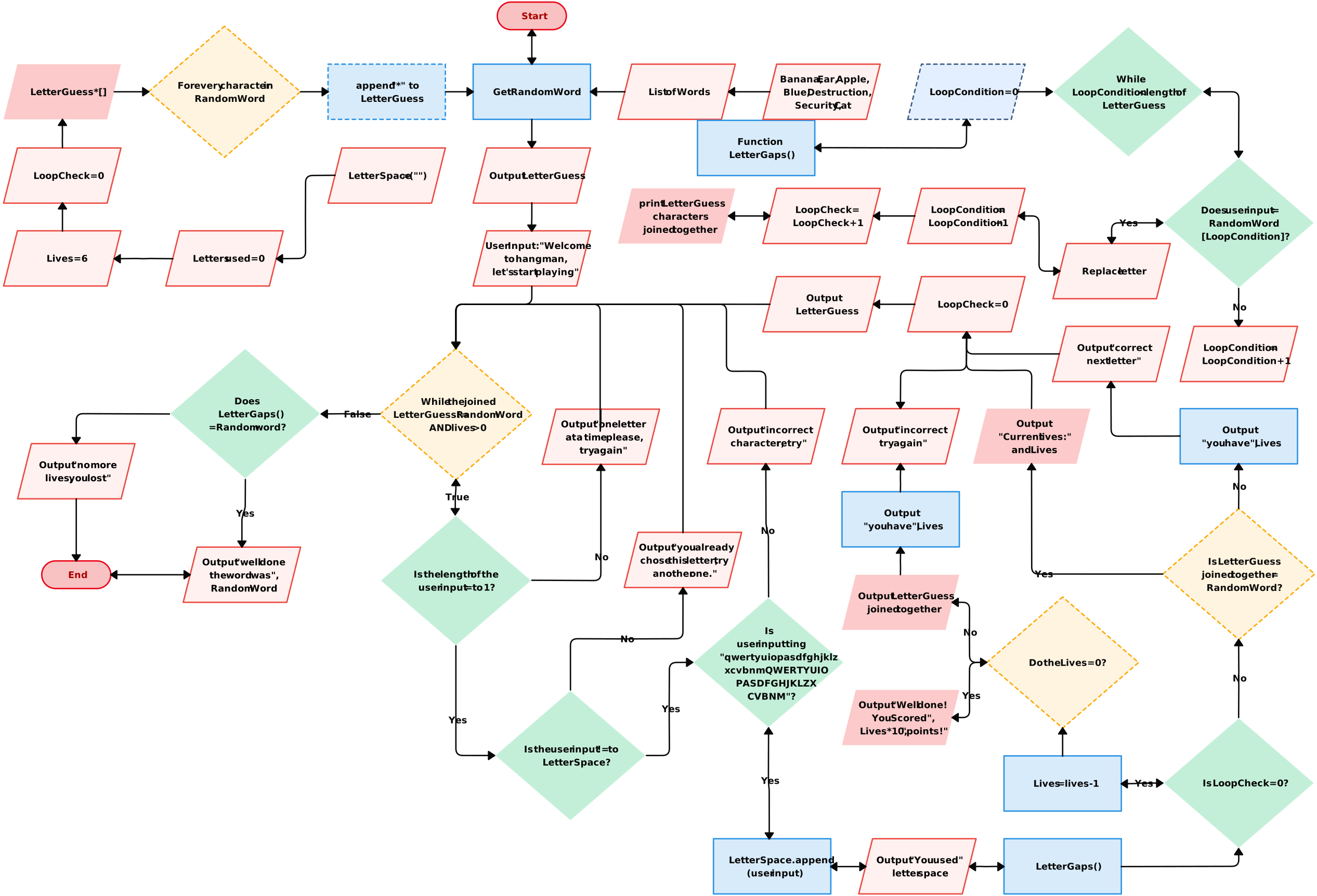
Each template is fully customizable to match specific project needs. Whether you’re visualizing workflows, designing systems, or managing projects, Creately’s templates make it easy to bring your ideas to life.
Explore our flowchart templates for inspiration and ready-made designs that will help you kickstart your diagramming process.
Discover how to leverage Creately for advanced and collaborative flowcharting. Watch this video tutorial for detailed guidance on creating high-quality flowcharts with ease.
Conclusion
PowerPoint’s shapes, connectors, and SmartArt work well for a basic flowchart that belongs in a presentation. For a larger workflow that teams need to review and maintain, Creately adds purpose-built diagramming, an infinite canvas, process ownership, connected context, and focused collaboration. Choose the approach based on the diagram’s complexity, audience, and expected lifespan.