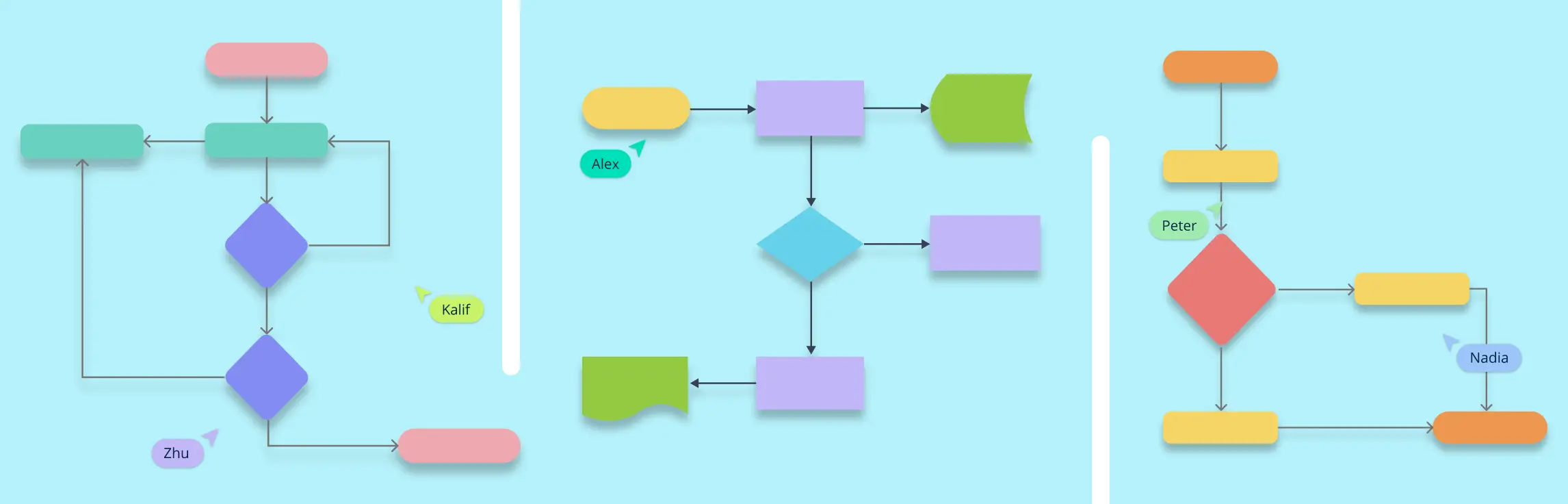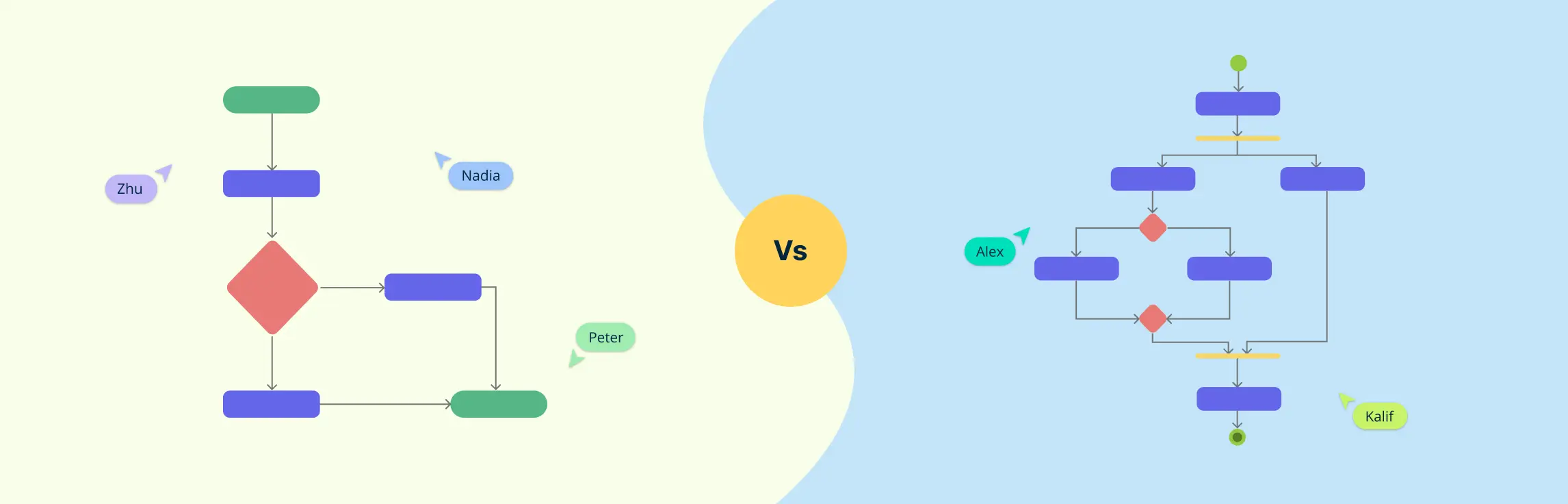
Flowcharts are powerful tools for visualizing processes and making complex information easier to understand. Whether you’re mapping out a business process, designing software, or planning a project, flowcharts help you break down tasks step by step. However, to create clear and effective flowcharts, it’s important to follow certain flowchart rules.
For beginners, understanding these flowchart rules is the first step to creating diagrams that are both easy to read and easy to follow. In this guide, we’ll cover the essential flowchart rules that every beginner should know. By mastering these basic principles, you’ll be able to create organized, accurate flowcharts that communicate your ideas with clarity and precision.
What Are Flowchart Rules
Flowchart rules are basic guidelines that help you create clear and easy-to-understand flowcharts. These flowchart rules ensure that your flowchart is organized, follows a logical order, and is simple for others to read.
Good flowchart rules cover things like using the right symbols, keeping the flow direction consistent, avoiding messy layouts, and making sure every step connects properly. By following these flowchart rules, you can create flowcharts that effectively show processes, decisions, or workflows without confusion. Whether for business, education, or problem-solving, flowchart rules help make complex ideas simple and visual.
10 Flowchart Rules for Accurate Diagrams
Creating effective flowcharts requires adherence to certain fundamental rules to ensure clarity and functionality. Below are the essential flowchart rules:
Flowchart Rule 1: Plan Before You Start
Before you start drawing a flowchart, taking the time to plan is one of the key flowchart rules you should know. A well-thought-out flowchart is easier to understand and more effective in showing a process.
First, understand the process you want to illustrate. Ask yourself: What steps are involved? What decisions need to be made? The better you know the process, the clearer your flowchart will be.
Next, define the purpose of your flowchart. Are you mapping out a business workflow, a troubleshooting guide, or a step-by-step process? Knowing this will help you decide what details to include and what to leave out.
Finally, get input from others who use or understand the process. Talking to colleagues, team members, or experts can help you avoid mistakes and ensure accuracy. A flowchart is only useful if it truly represents how things work.
Flowchart Rule 2: Use Standard Flowchart Symbols
Flowchart symbols are like a visual language—they help people quickly understand the steps in a process. Using the right symbols to ensure your flowchart is clear and easy to follow is one of the key flowchart rules.
Here are the four key symbols you should use:
- Ovals mark the start and end points of the process. Every flowchart needs a clear beginning and end.
- Rectangles represent actions or steps in the process. These could be tasks, calculations, or instructions.
- Diamonds indicate decision points, where the process can take different paths based on a yes/no or true/false answer.
- Parallelograms show inputs and outputs, such as data being entered or results being displayed.
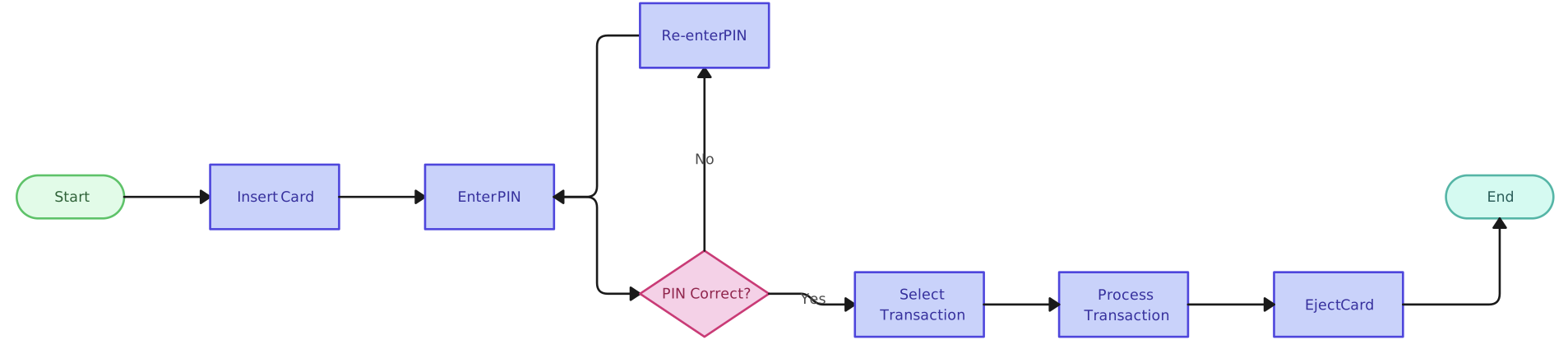

To keep your flowchart easy to read, use symbols consistently. Mixing up symbols or using them incorrectly can cause confusion and make the process harder to understand. Stick to these standard symbols, and your flowchart will be both professional and easy to follow.
Flowchart Rule 3: Follow a Logical Flow Direction
A good flowchart should guide the reader smoothly from one step to the next. That’s why flow direction matters. When a flowchart is easy to follow, it helps people understand a process quickly and without confusion.
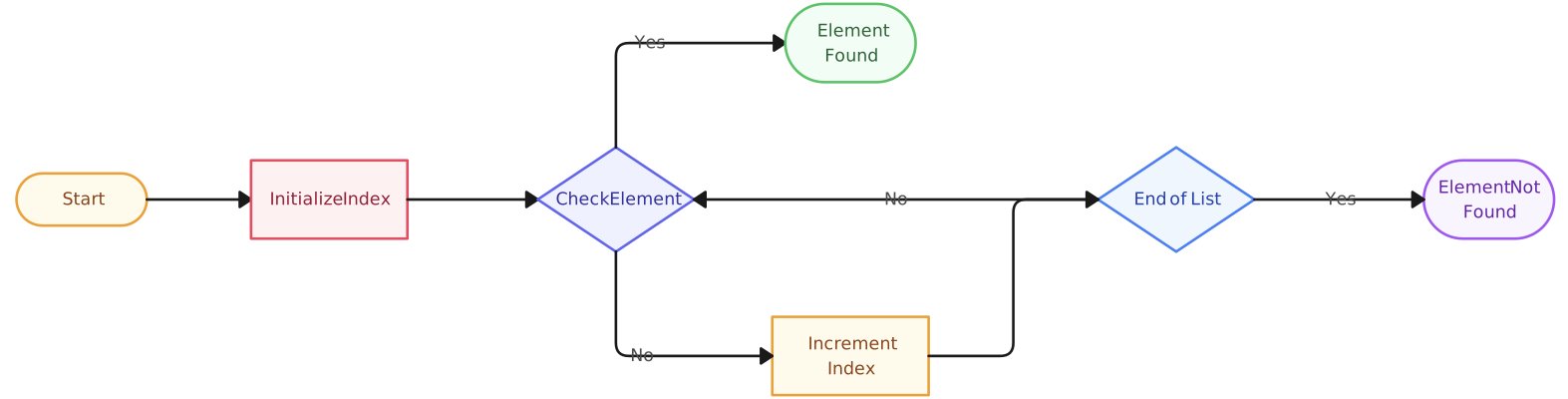
The best practice is to organize your flowchart from left to right or top to bottom—just like how we read. This natural flow makes it easier for anyone to follow along without getting lost.
When your flowchart follows a logical direction, it becomes an effective tool for explaining processes in a simple, visual way.
Flowchart Rule 4: Connect Symbols with Clear and Consistent Arrows
Arrows are what make a flowchart flow. They guide the reader through each step, showing how the process moves forward. If arrows are unclear or messy, the whole flowchart becomes confusing.

To keep your flowchart easy to read:
- Use arrows to clearly connect each step. Every shape should have an arrow leading to the next step, so there’s no guessing about what happens next.
- Avoid crossing or overlapping lines. If arrows crisscross or tangle, your flowchart will look cluttered and hard to follow. Try to space out symbols so that connections stay neat.
- Label decision-point arrows. When a process branches at a decision (a diamond symbol), label each arrow with clear answers like “Yes” and “No” so the reader knows which path to take.
Flowchart Rule 5: Keep the Flowchart Simple and Readable
A great flowchart is easy to understand at a glance. If it’s too complicated, people might struggle to follow the process. That’s why simplicity is key.
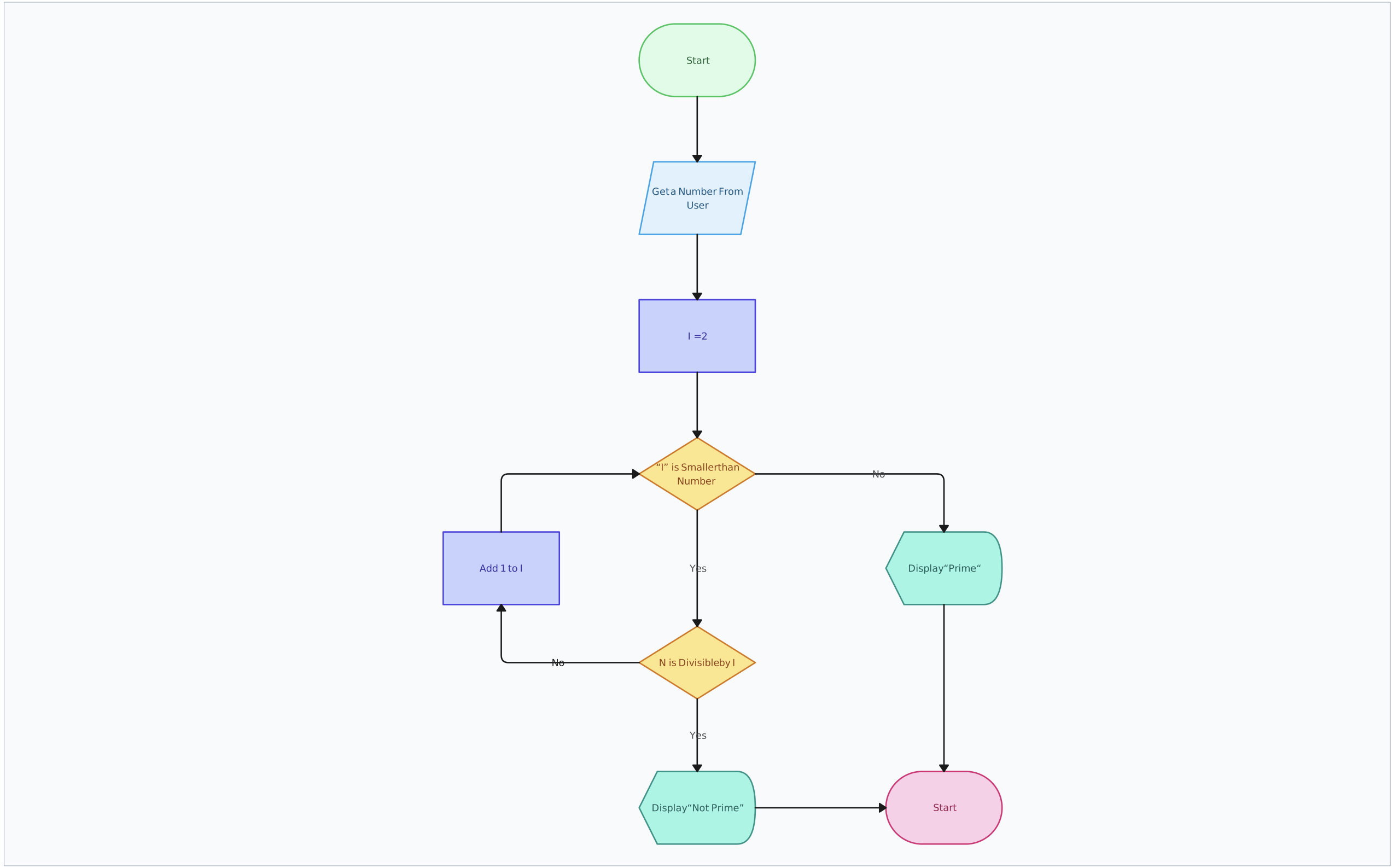
To keep your flowchart clear and effective:
- Use only the necessary steps. Avoid adding extra details that don’t help explain the process. A streamlined flowchart is always easier to read.
- Keep text inside symbols short and to the point. Instead of long sentences, use brief action words like “Submit form” or “Check status.”
- Space out your symbols properly. If shapes are too close together, the flowchart can look cluttered. A well-spaced layout improves readability.
Flowchart Rule 6: Ensure Proper Alignment and Spacing
A well-organized flowchart is much easier to read and understand. If symbols are misaligned or too close together, the diagram can look messy and confusing. Proper alignment and spacing help keep everything clear.
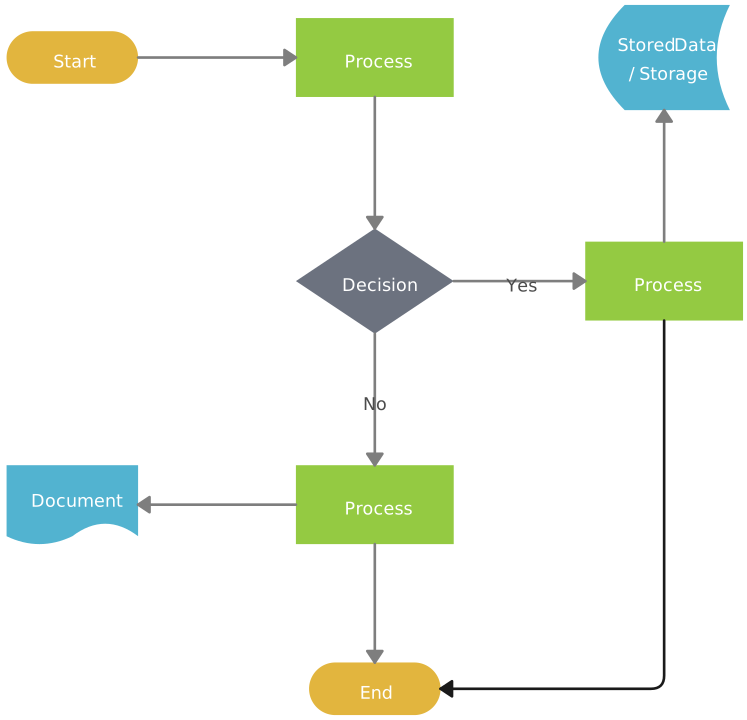
To create a clean, structured flowchart:
- Align symbols properly so that steps follow a straight, easy-to-follow path. A structured layout makes it effortless to track the flow of the process.
- Keep equal spacing between elements to prevent clutter. If symbols are too close, the chart may feel overwhelming. If they’re too far apart, it might be hard to follow the sequence.
- Use gridlines or flowchart software tools to position symbols neatly. Most flowchart makers have built-in alignment guides that help keep everything in order.
Flowchart Rule 7: Limit Flowcharts to One Page If Possible
A flowchart should be easy to follow at a glance. When a diagram stretches across multiple pages, it becomes harder to read and understand.
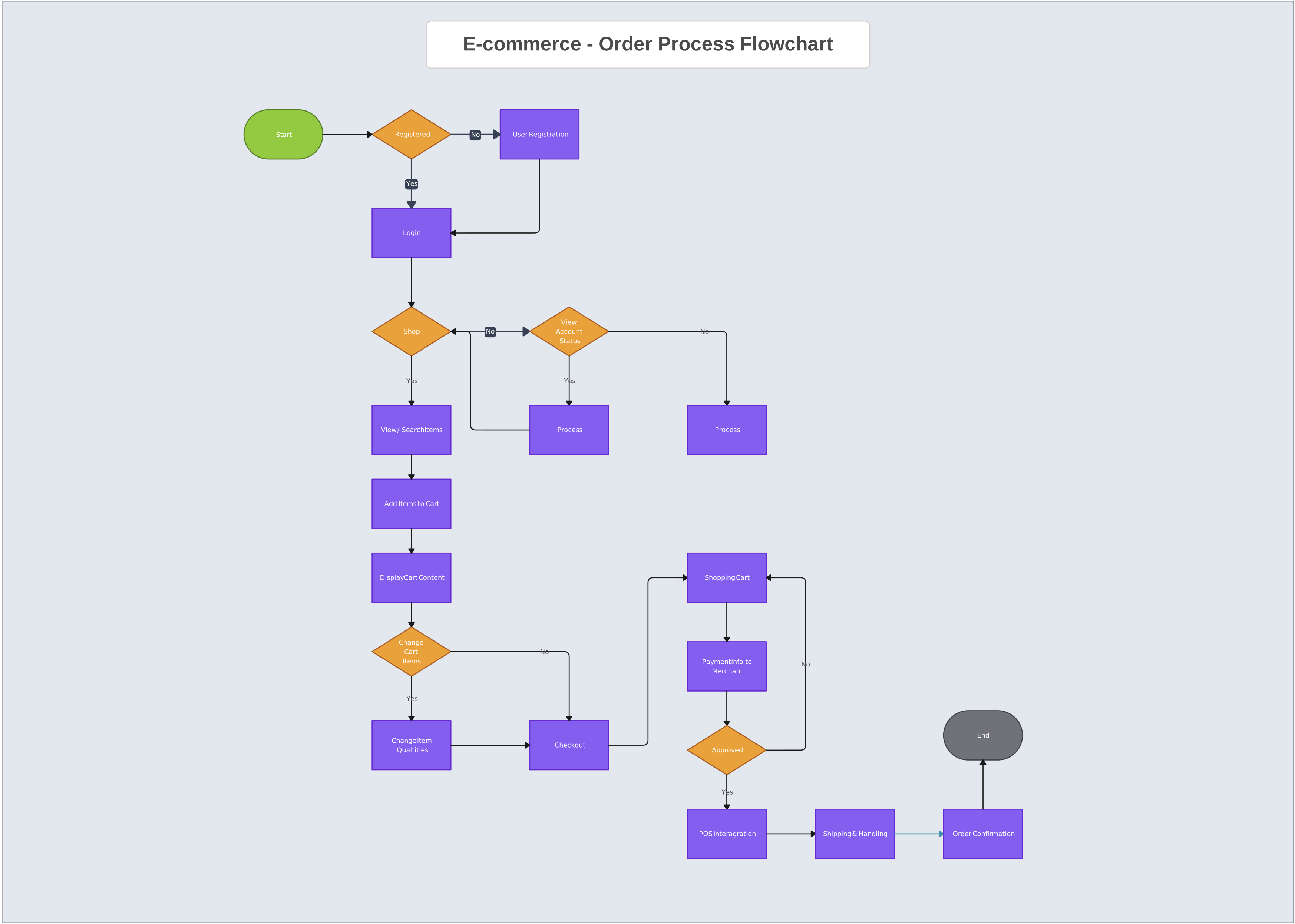
To keep your flowchart clear and effective:
- Keep it concise. Only include the most important steps to avoid unnecessary complexity. A simple, well-structured flowchart is more useful than an overloaded one.
- Stick to one page whenever possible. If a flowchart gets too long, it can become overwhelming. A single-page flowchart is easier to scan and follow.
- Break long processes into smaller flowcharts. If your process is complex, consider creating separate, linked flowcharts for different sections. This keeps each part manageable and easy to understand.
Flowchart Rule 8: Verify Accuracy and Consistency
A flowchart is only useful if it’s accurate and consistent. Errors or inconsistencies can cause confusion and lead to misunderstandings.
To ensure your flowchart is correct and professional:
- Double-check for logical errors or missing steps. Walk through the flowchart to make sure every step is in the right order and all necessary details are included.
- Ensure consistency in design. Use the same font sizes, symbol styles, and colors throughout your flowchart. A uniform design looks polished and makes it easier for readers to focus on the content.
- Review with others. Ask colleagues or team members to look over your flowchart. Fresh eyes can often spot errors or areas that need improvement.
Flowchart Rule 9: Keep the Design Minimalist and Purposeful
A simple, focused design makes a flowchart much more effective. Too many details or unnecessary elements can distract from the main message and make the chart harder to understand.
To create a clean, purposeful flowchart:
- Remove unnecessary details. Only include the key steps and information that are important to the process. Avoid cluttering the chart with extra details that don’t add value.
- Use color sparingly. While color can be helpful to highlight key points, too much color can be overwhelming. Stick to using color for important elements, like decision points or key actions.
- Ensure the flowchart serves its purpose. Every element in the flowchart should have a reason for being there. If something doesn’t add to the clarity or function of the flowchart, it should be removed.
Flowchart Rule 10: Test the Flowchart
Before finalizing your flowchart, it’s important to make sure it works as intended and is easy for others to understand. Testing ensures there are no mistakes or confusing parts.
Here’s how to test your flowchart:
- Walk through the process step by step. Go through each part of the flowchart yourself to see if everything flows logically. Make sure every step connects correctly and that the process makes sense.
- Ask others to review it. Get feedback from colleagues or team members. They might notice things you missed or find areas that are unclear. Fresh perspectives are valuable for improving the flowchart’s clarity.
By testing your flowchart, you can be confident that it is both accurate and easy to understand—ensuring it effectively communicates the process to others.
Common Flowchart Mistakes and How to Avoid Them
Even with a solid understanding of flowchart rules, mistakes can still happen, making diagrams unclear, confusing, or ineffective. A well-designed flowchart should simplify complex processes, but errors in structure, wording, or organization can have the opposite effect. To create a clear, logical, and useful flowchart, avoid these common mistakes that can lead to confusion or inefficiency.
1. Starting without defining the goal
Jumping into a flowchart without a clear purpose can lead to unnecessary complexity, missing details, or an ineffective diagram. Before you begin, ask: What is the goal of this flowchart? Are you mapping out a decision-making process, a workflow, or a troubleshooting guide? Defining this upfront helps ensure that every step in the flowchart serves a clear purpose.
2. Adding unnecessary steps
A flowchart should simplify a process, not make it more complicated. Including too many steps—especially minor or redundant ones—can make the diagram overwhelming and harder to follow. Each step should add value. If a step doesn’t contribute to understanding the process or decision-making, consider removing it.
3. Using vague or unclear wording
Each step in a flowchart should be concise and specific. Avoid generic phrases like “Process data” or “Handle issue” without explaining what exactly needs to be done. Instead, use precise wording like “Validate user input” or “Escalate complaint to supervisor.” The clearer the wording, the easier it is for others to follow the process.
4. Making the flowchart too linear
Not all processes follow a straight, step-by-step sequence. Some involve loops, alternative outcomes, or branching decisions. If a flowchart follows only a single path from start to finish, it might not accurately represent the process. Be sure to include decision points where necessary and account for different possible outcomes.
5. Not considering the audience
A flowchart is meant to communicate a process, so it’s important to consider who will be using it. If your audience is unfamiliar with technical jargon, using industry-specific terms without explanation can make the flowchart difficult to understand. Adjust the wording and level of detail based on the knowledge level of the people who will be reading and using it.
6. Failing to differentiate similar steps
Some processes involve repeated actions, but simply labeling them with identical wording (e.g., “Check request” appearing multiple times) can cause confusion. Make each step distinct by adding details that clarify what makes them different, such as “Check request for completeness” vs. “Check request for approval.”
7. Over-relying on color for meaning
Color can be helpful for categorizing steps or highlighting key parts of a flowchart, but relying solely on color can make the chart inaccessible to those with color vision deficiencies. Instead, combine color with clear labels, bolding, or different shapes to distinguish sections or highlight important elements.
8. Forgetting to update the flowchart
Processes change over time, and if a flowchart isn’t updated accordingly, it can become misleading or obsolete. Outdated flowcharts can cause errors, inefficiencies, and confusion among team members. Regularly review and update flowcharts to reflect the most current procedures.
9. Not considering alternative process flows
Many processes have multiple possible paths depending on different conditions or variables. If your flowchart only accounts for a single scenario, it might not be comprehensive enough. Make sure to include alternate paths where necessary, such as what happens when an application is rejected or if an error occurs in a workflow.
10. Skipping a final review
Even minor errors in a flowchart can lead to major misunderstandings. Missed connections, incorrect decision paths, or inconsistent symbols can disrupt the flow and make the diagram less effective. Always review your flowchart thoroughly before finalizing it. It’s also a good idea to get feedback from others to ensure clarity and correctness.
Simplify Creating Flowcharts with Creately
Creating a flowchart manually can be time-consuming, and maintaining clarity, alignment, and accuracy can be challenging. A free flowchart software like Creately simplifies the process by providing smart tools that help you follow flowchart rules effortlessly. With its intuitive interface, automation features, and AI-powered assistance, Creately ensures that your flowcharts are clear, professional, and easy to understand.
1. Predefined standard symbols
Creately provides a comprehensive library of predefined flowchart symbols, such as ovals for start and end points, rectangles for processes, diamonds for decisions, and parallelograms for inputs and outputs. With these built-in options, you don’t have to manually search for or create shapes, ensuring accuracy and consistency in your diagrams.
2. Automatic alignment & spacing
Creately automatically aligns and spaces elements evenly, keeping your flowchart neat and visually appealing. It prevents overlapping symbols, uneven spacing, and misalignment, ensuring that your flowchart follows a structured, easy-to-read format.
3. Smart connectors & arrows
Creately provides auto-adjusting connectors that maintain logical flow, prevent overlapping lines, and ensure that decision paths are easy to follow. With labeled arrows for “Yes” and “No” branches, your flowchart remains clear and easy to navigate.
4. Gridlines for neat layouts
Proper alignment is crucial for a professional and readable flowchart. Creately’s built-in gridlines and guidelines help keep symbols evenly spaced and maintain a structured layout. This ensures that your flowchart looks polished and well-organized, making it easier to understand at a glance.
5. Real-time collaboration & feedback
Flowcharts often require input from multiple stakeholders. With Creately, you can share your flowchart instantly, gather feedback directly on the diagram, and make changes together in real-time. This streamlines the review process, ensuring accuracy and consistency before finalizing the flowchart.
6. Templates for quick & professional designs
If you’re unsure where to start, Creately offers ready-made flowchart templates that follow best practices, so you don’t have to build from scratch. These templates provide a structured starting point, reducing the effort needed to create a flowchart while ensuring that it adheres to standard formatting, alignment, and symbol usage.
7. Creately VIZ for AI-powered flowcharting
Creately takes flowcharting to the next level with Creately VIZ, its AI-powered diagramming assistant. With Creately VIZ, you can generate AI flowcharts simply by describing your process in natural language. It suggests improvements, ensures best practices are followed, and helps refine the flowchart effortlessly. This AI-powered assistance saves time and enhances accuracy, making flowchart creation even more efficient.
8. Integrated notes for additional context
Adding too much text inside flowchart symbols can make the diagram cluttered and hard to read. Creately allows you to attach detailed notes to individual shapes, so you can provide extra context, explanations, or instructions without overcrowding the flowchart. This feature ensures that each step remains clear and concise while still offering the necessary background information when needed.
Conclusion: Essential Flowchart Rules
Creating a flowchart isn’t just about drawing shapes and connecting them with arrows—it’s about making processes clear, efficient, and easy to follow. By following these flowchart rules, you ensure that your diagram is simple, logical, and useful for anyone who reads it.
From planning before you start to testing for accuracy, each rule helps improve the clarity and effectiveness of your flowchart. Using standard symbols, keeping the design clean and minimalist, and ensuring a logical flow all contribute to making your flowchart a valuable tool for communication.
The key takeaway? Simplicity and accuracy matter. A well-made flowchart should guide the reader effortlessly through a process, eliminating confusion and making complex tasks easier to understand.
Now that you know the essential flowchart rules, you’re ready to create clear, professional, and effective flowcharts that help streamline processes and improve understanding.
References
Nabeel Allawi (2020). What is the FlowChart. [online] ResearchGate. Available at: https://www.researchgate.net/publication/342572223_What_is_the_FlowChart.
Ensmenger, N. (2016). The Multiple Meanings of a Flowchart. Information & Culture, [online] 51(3), pp.321–351. doi:https://doi.org/10.2307/44667617.
FAQs About Flowchart Rules
Why is it important to follow flowchart rules?
Can I use custom symbols instead of standard flowchart symbols?
How do I handle processes with multiple possible outcomes?
Should I add additional details inside flowchart symbols?
What’s the best way to label arrows in a flowchart?
Is there a standard number of steps a flowchart should have?
Can I use different colors in my flowchart?
What are common mistakes to avoid when creating a flowchart?