Listed below are some of the best flowchart software in the industry you can use to visualize your processes, systems, and workflows. The table below will give you a quick overview of each software and you can get more detailed information in the individual reviews done for each tool.
A Quick Overview of the Best Flowchart Software
When it comes to choosing the best flowchart tools, there are a few top options worth considering. The ideal flowchart tool should be easy to use, visually appealing, and offer a wide range of features. Here are our top picks of flowchart tool options:
| Complete Flowchart Shape Library | Quick Styling Options | Real-Time Collaboration | Free Flowchart Templates | PNG, SVG, and PDF Export | AI Generated Flowcharts | Pricing Monthly/ User | |
|---|---|---|---|---|---|---|---|
| Creately | ✔️ | ✔️ | ✔️ | ✔️ | ✔️ | ✔️ | $ 8 |
| Venngage | ❌ | ❌ | ✔️ | Limited | No SVG | ❌ | $ 19 |
| Miro | ✔️ | ✔️ | ✔️ | Limited | ✔️ | ❌ | $ 8 |
| Microsoft Visio | ✔️ | ✔️ | ❌ | Limited | ✔️ | ❌ | $ 5 |
| Lucidchart | ✔️ | ✔️ | ✔️ | ✔️ | ✔️ | ✔️ | $ 9.95 |
| Whimsical | ❌ | ✔️ | ✔️ | Limited | No SVG | ✔️ | $ 12 |
| ClickUp | ❌ | ✔️ | ✔️ | Limited | ✔️ | ✔️ | $ 7 |
| Canva | ❌ | ✔️ | ✔️ | ✔️ | ✔️ | ❌ | $ 6.49 |
| Figma | ✔️ | ✔️ | ✔️ | Limited | ✔️ | ✔️ | $ 12 |
| SmartDraw | ✔️ | ❌ | ✔️ | ✔️ | ✔️ | ❌ | $ 9.95 |
Flowcharting Features Considered for Selection
When looking for a good flowchart software for your needs, there are a few important factors to consider. The software should have:
Intuitive and easy-to-use interface: The flowcharting tool should allow you to quickly create flowcharts with minimal learning curve. The interface should be simple and self-explanatory with features such as drag-and-drop shapes that are easy to find and use.
Comprehensive shape libraries: The software needs to have a comprehensive library of flowchart shapes to choose from. Shape libraries for other flow diagrams such as process maps, BPMN diagrams, mind maps, etc. are an added benefit.
Export to common formats: At the least, the software should allow you to export the flowchart as an image file (PNG, JPEG) and PDF. Export to Microsoft formats (Word, PowerPoint, Visio) is a plus.
Easy customization options: You should be able to customize your flowcharts by changing colors, line thickness, adding text and images. This provides more flexibility and helps create flowcharts that match your brand or requirements.
Online collaboration for teams: For teams, online collaboration features are invaluable. Being able to edit and comment on flowcharts together in real time helps make sure that everyone stays on the same page.
Connectors: The flowchart software must have different connectors to link shapes together to represent the logical flow - straight, curved, orthogonal and cloud connectors.
Creately
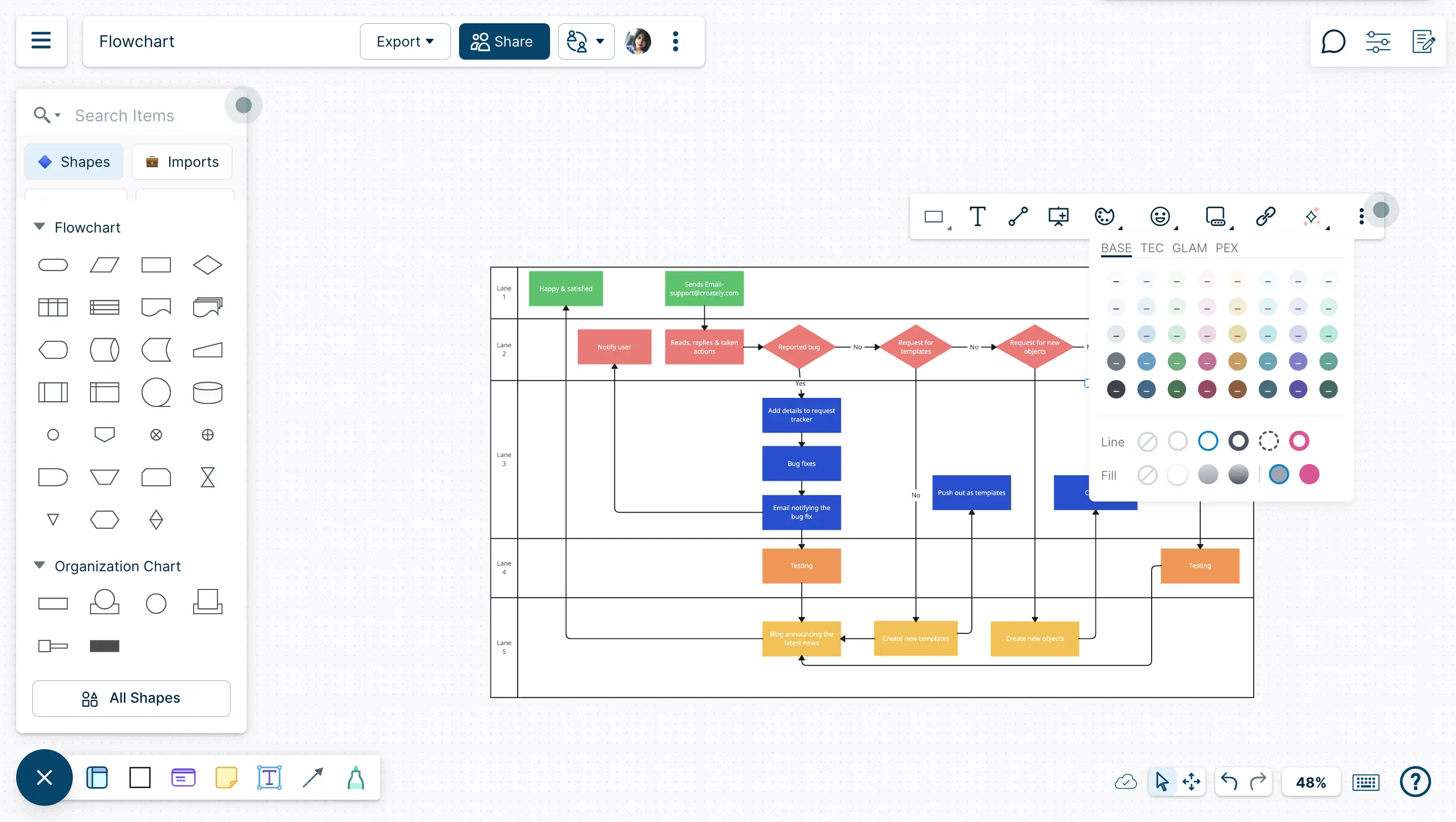
Creately’s flowchart software is a versatile online diagramming tool that allows you to create professional-looking flowcharts. It has a simple and intuitive drag and drop interface that makes it easy to get started quickly. You can choose from a wide range of flowchart templates and symbols. Creately also offers real-time collaboration, so multiple users can work on the same flowchart at the same time while tracking changes with live mouse tracking and synced previews.
Features
- Industry standard shape libraries and templates for flowcharts, process maps, BPMN diagrams, and 50+ other diagram types
- Real-time collaboration to work with teammates
- Creately AI to generate flowcharts automatically with text inputs (Creately VIZ)
- Diagram export options for multiple formats including PDF, JPEG, and PNG
- Full version history to keep track of changes
- Per item notes and data fields to store additional information
- Online sharing and embedding options
Pros
- Intuitive interface that requires little to no learning curve
- Can create multiple types of charts and diagrams
- Easy customization options for styling flowcharts
- Keyboard shortcuts and Plus Create to draw flowcharts quickly
- Dynamic connectors to rotate, expand, or resize flowcharts tangle-free
Cons
- Some advanced features only available with paid plans
- No mobile app version currently available
Pricing
- Free - $ 0
- Personal - $ 8 /month per user
- Business - $ 89 / month paid annually for unlimited users
- Enterprise - Custom pricing
Check out Creately plans for more detail.
Venngage
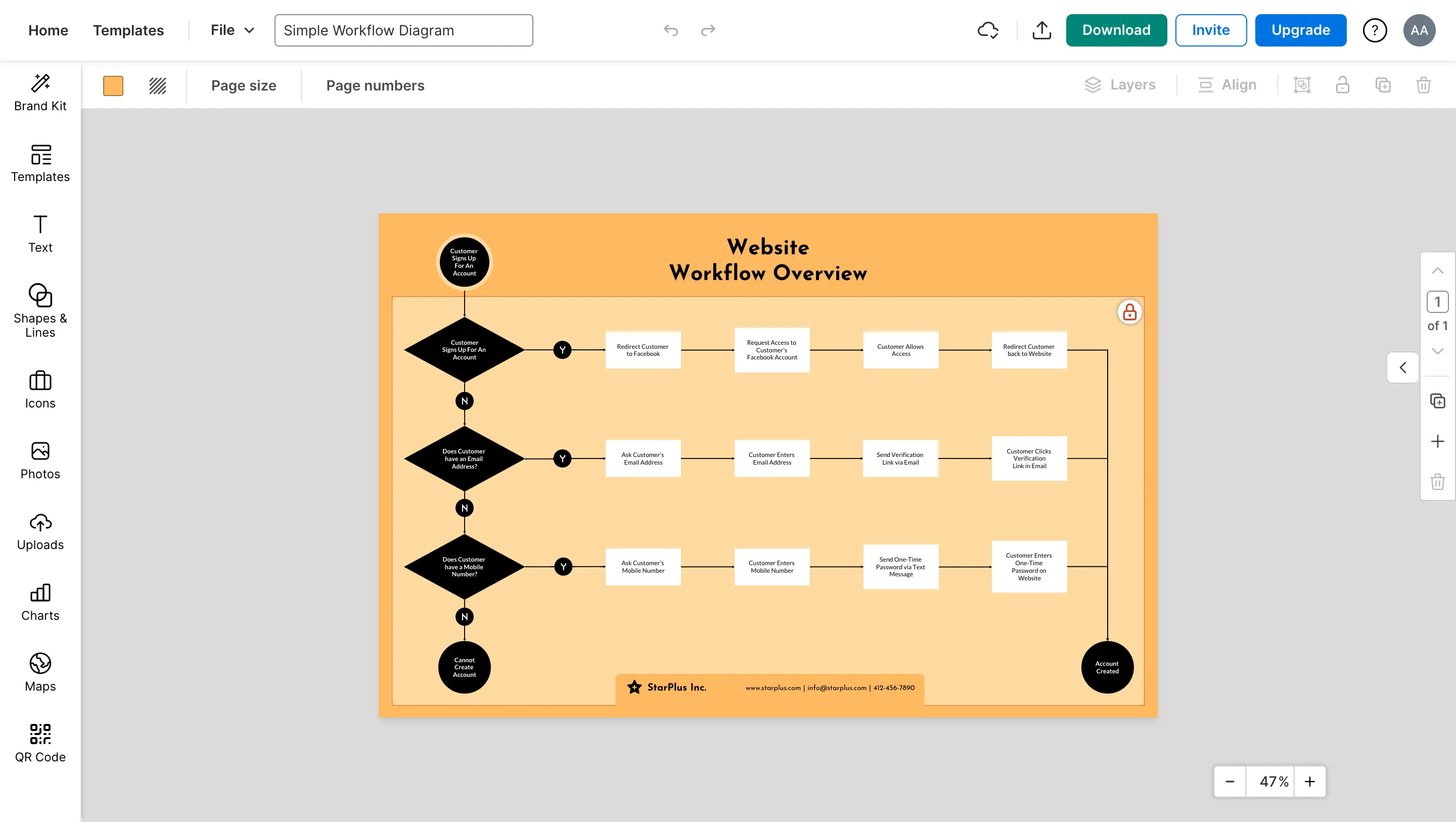
Venngage is another good option, especially for non-technical users. It has a drag-and-drop interface that does not require any previous experience creating flowcharts. Venngage has over 100 flowchart templates to choose from in many different styles. You can also add photos, videos, and other media to your flowcharts for more visual appeal.
Features
- Easy-to-use drag-and-drop interface
- 100+ flowchart shapes and templates
- Real-time collaboration
- Export to PDF, PNG, and JPEG formats
- Share online or embed on websites
Pros
- Intuitive and easy-to-use
- Wide range of premade templates for different use cases
- Vast library of stock photos and illustrations
Cons
- Limited number of shapes and templates
- Basic features only, no advanced options
- Watermark on free exported files
- Collaboration and full exporting is only available on paid plans
- Paid plan requirement for downloads
Pricing
- Free - $ 0
- Premium - $ 19 /month per user
- Business - $ 49 /month per user
- Enterprise - Starting at $499 /month for 10+ seats
Miro
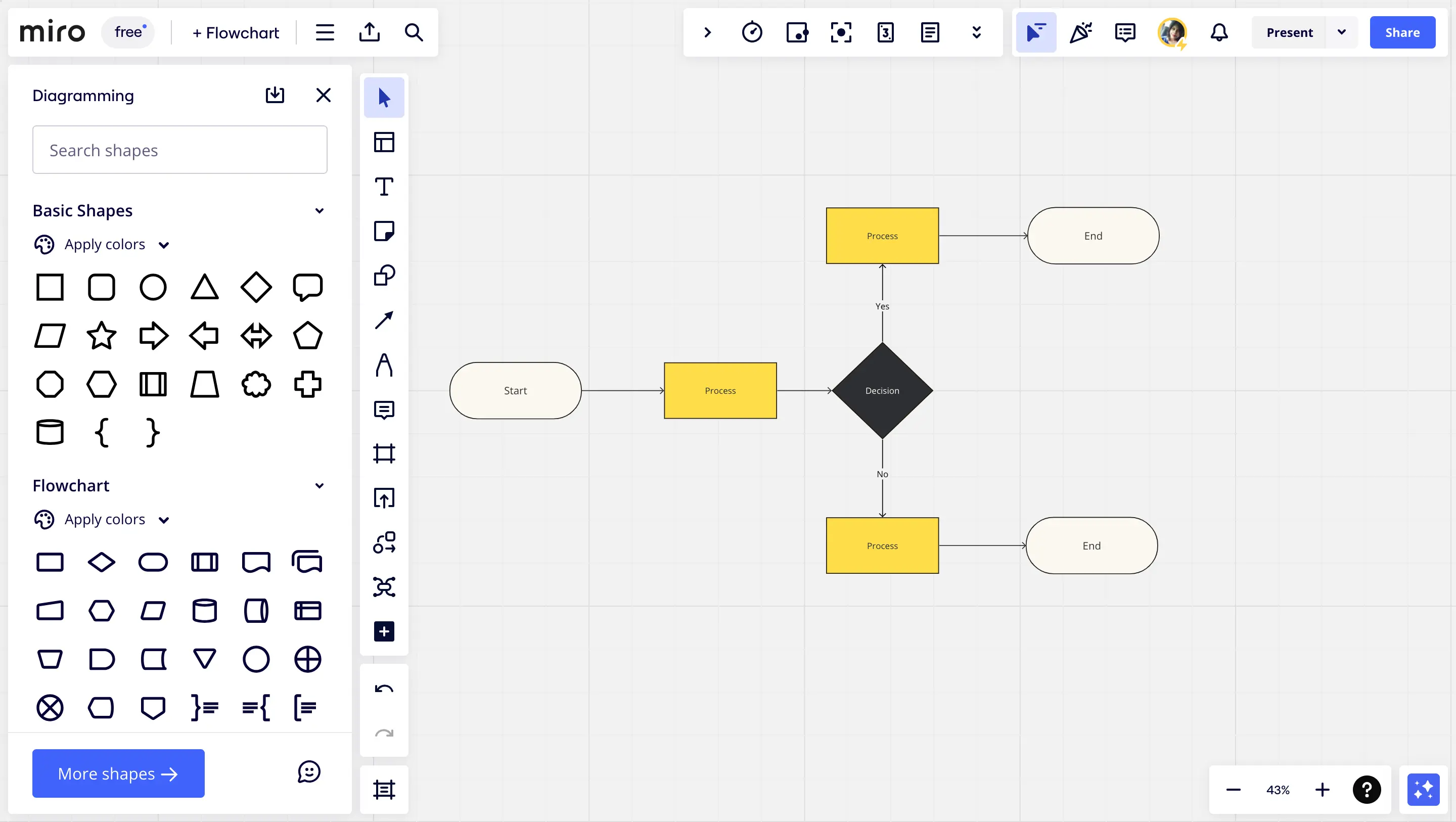
Miro is a visual collaboration platform that offers a robust set of flowchart tools. You can create flowcharts from scratch or choose from pre-made templates. Miro has a large canvas for creating detailed flowcharts. It also offers real-time collaboration and the ability to comment and annotate directly on the flowchart.
Features
- Unlimited freeform canvas to sketch and visualize ideas
- Ability to add various shapes, sticky notes, text boxes and images
- Real-time collaboration for multiple users
- Ability to add templates for common workflows like sprint planning, project management etc.
Pros
- Easy to use visual interface
- Good for brainstorming sessions and workshops with a team
- Remote collaboration across geographies
- Integration with tools like Google Drive, Dropbox, Slack and Zoom
Cons
- Limited storage for free plan
- Some advanced features only available in paid plans
- Cannot export boards as images or PDF natively
Pricing
- Free - $ 0
- Starter - $ 8 /month per user
- Business - $ 19 /month per user
- Enterprise - Custom pricing
Microsoft Visio
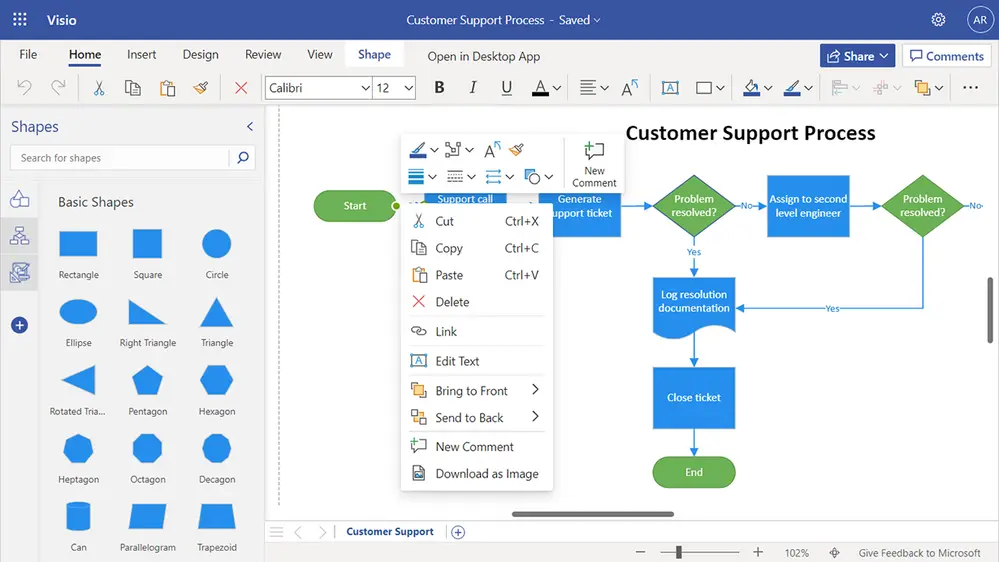
Microsoft Visio is a powerful flowcharting software that has been around for decades. Visio offers a huge library of pre-made templates and shapes that you can customize. You can integrate Visio flowcharts into Word, Excel, and PowerPoint documents. Visio’s artificial intelligence features can even automatically create flowcharts based on your text input. Visio is a good option if you already use Microsoft Office.
Features
- Templates for common types of flowcharts
- A vast library of pre-made flowchart shapes and symbols
- Alignment and distribution tools to organize shapes and symbols on the page
- Layer feature to organize related elements and hide/show parts of your diagram
Pros
- Drag-and-drop and control points to build and customize quickly
- Autoalign and autospace to lay out shapes and connectors
- Integration with Microsoft Office
Cons
- Deeper learning curve for more complex diagrams
- Lack of real-time collaboration
- More geared towards business users than technical users
- Unable to publish diagrams directly to the web
- Templates can be limiting if you want a very customized diagram
Pricing
- Visio Plan 1 (Great for creation and detailed diagramming.) - $ 5 /month per user
- Includes web and desktop apps (Ideal for specialized diagramming.) - $ 15 /month per user
Lucidchart
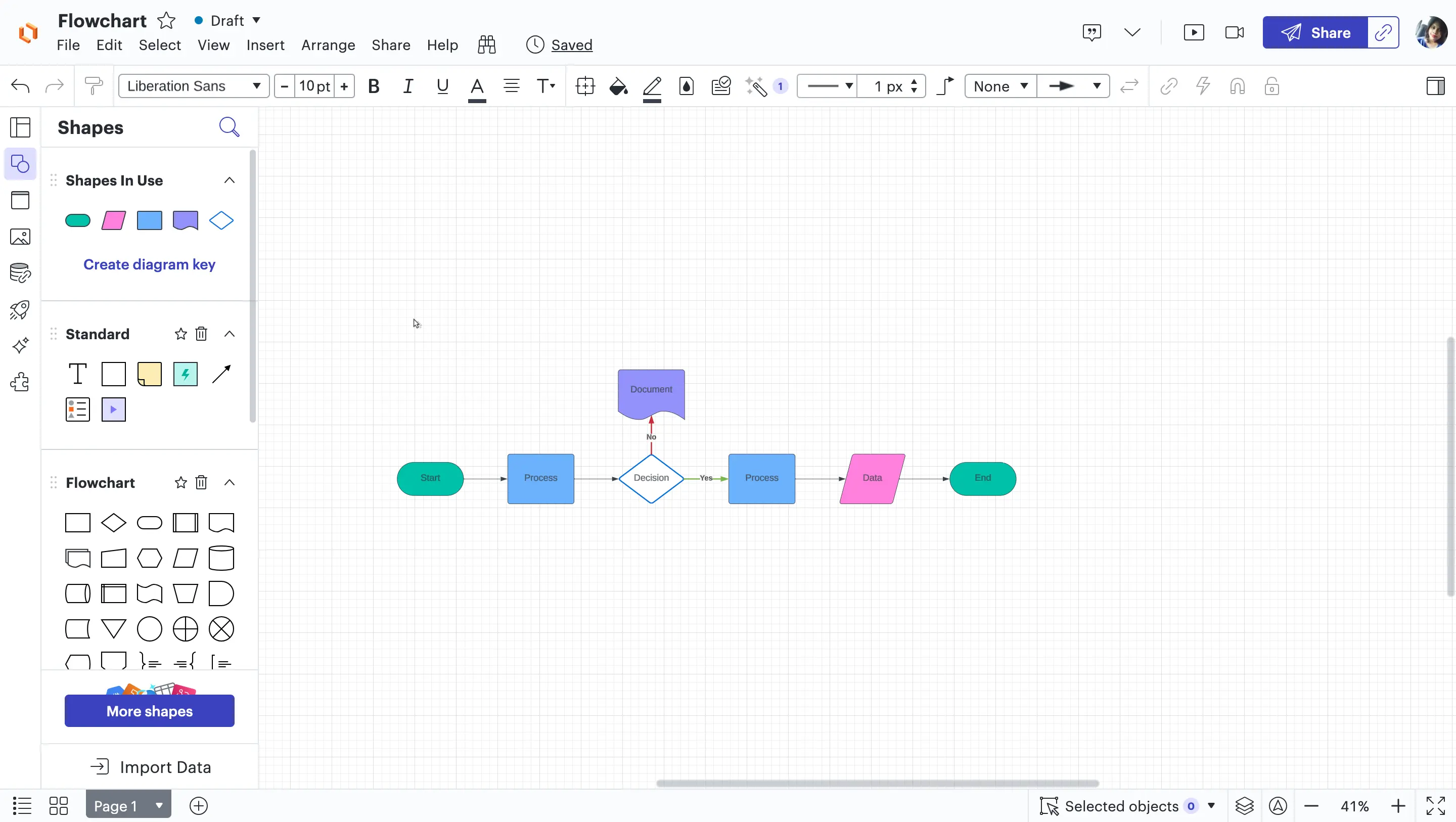
Lucidchart is an excellent choice for its simplicity and visual appeal. The interface is clean and intuitive, making it easy for beginners to get started. Lucidchart has hundreds of flowchart templates and shapes to choose from. You can integrate Lucidchart with Google Workspace apps for greater collaboration. It has an affordable pricing plan starting at $5 per user per month.
Features
- Easy-to-use visual interface for creating professional flowcharts
- Large library of flowchart shapes and templates to choose from
- Real-time collaboration for teams to work together
- Integration with Google Drive, Dropbox and OneDrive
Pros
- Simple drag-and-drop tool for building flowcharts
- Ability to customize shapes, colors, and styles
- Compatible with Mac and Windows
- Option to export flowcharts as images for presentations or reports
Cons
- Limited number of shapes and templates compared to some other tools
- Some advanced features only available with paid plans
- Real-time collaboration only available on paid plans
- Exporting to PDF has minor formatting issues sometimes
Pricing
- Free - $ 0
- Individual - $ 9.95 /month per user
- Team - $ 33 /month per user
- Enterprise - $ 43.98
Whimsical
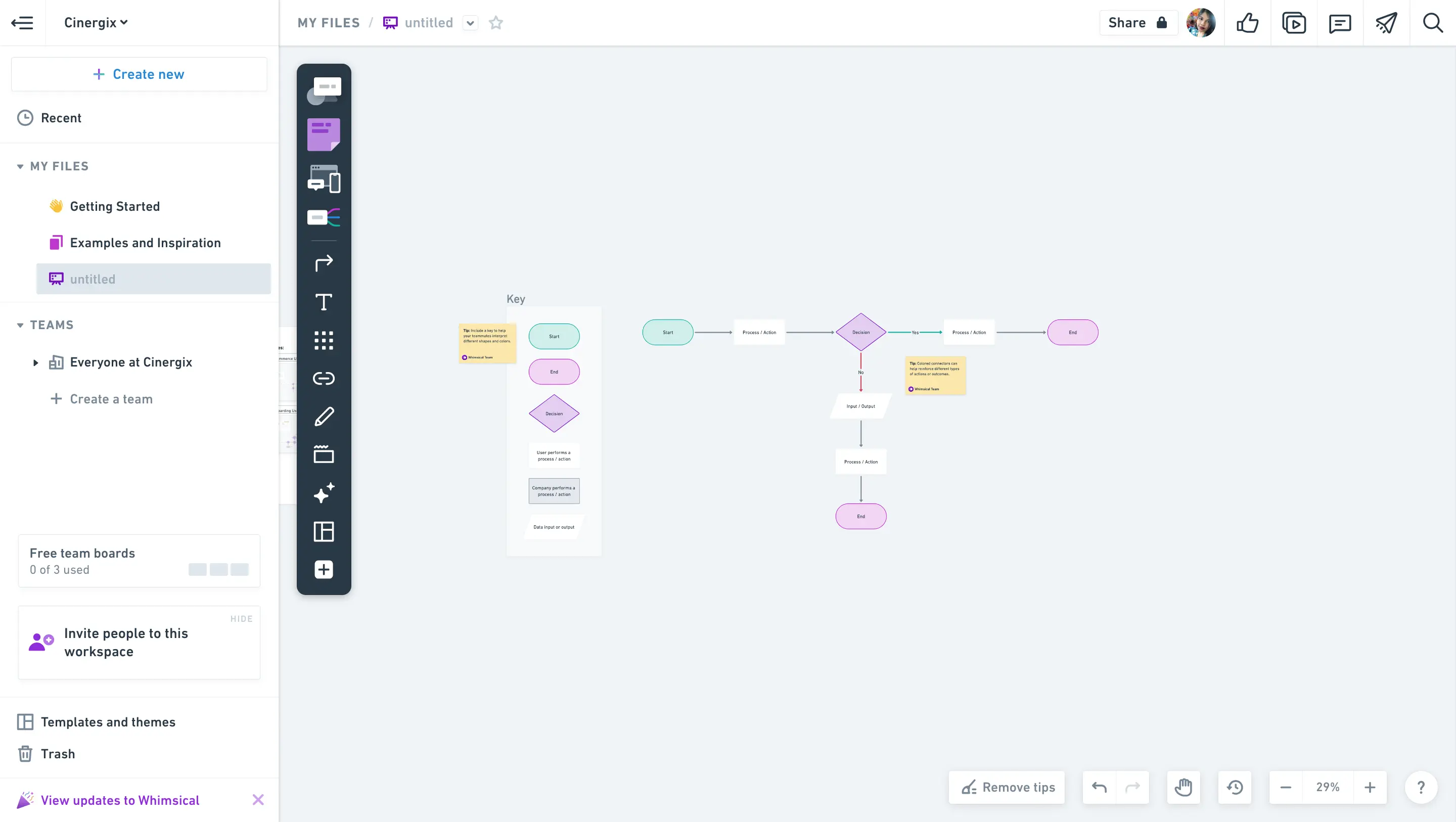
Whimsical is a great visual flowchart software for anyone looking to map out processes, workflows, site maps, and more in a simple visual way. It has a clean, simple interface that makes it easy to create flowcharts, wireframes, UI flows and more. You can collaborate in real-time with teammates and clients.
Features
- Intuitive, infinite canvas.
- Rich text formatting for hierarchy and detail
- Pre-made templates for different use cases.
- Collaborate in real-time with teammates.
Pros
- Real-time collaboration allows for efficient teamwork.
- Has a clean, simple interface that is not cluttered.
- Keyboard shortcuts to create diagrams faster.
Cons
- Some advanced features are only available in paid plans.
- Limited number of shapes compared to some competitors.
- Limited options for customizing shapes and connectors.
Pricing
- Starter - $ 0
- Pro - $ 12 /month per user
- Org - $ 20 /month per user
ClickUp
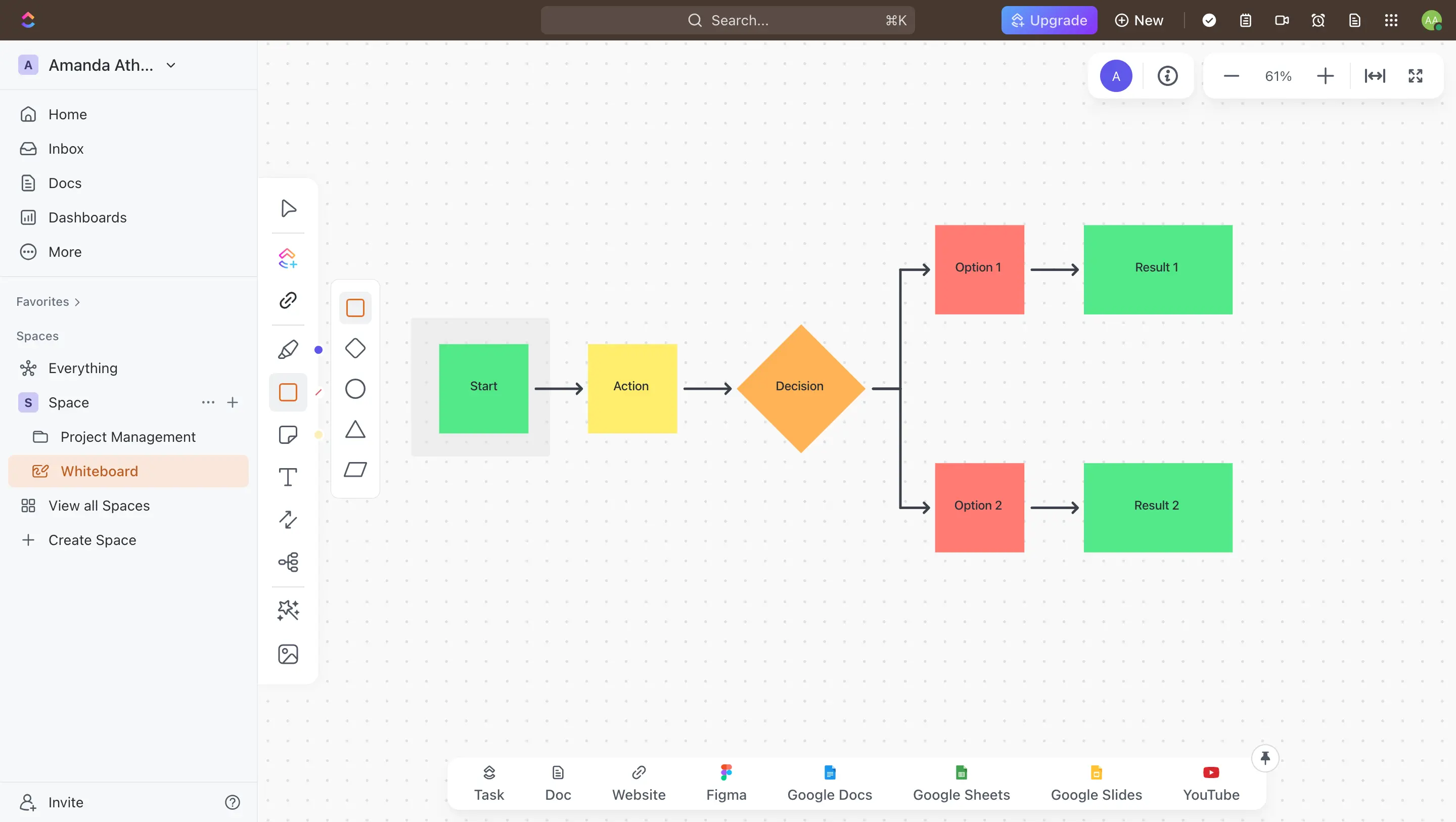
ClickUp is a task management and productivity software that also has a flowchart maker. Its flowchart maker allows you to create flowcharts, swimlanes, org charts, and more. You get templates and shapes to get started quickly. ClickUp’s flowcharts integrate directly into your ClickUp space so you can manage tasks directly from your flowcharts.
Features
- Simple drag and drop functionality
- Collaborate in real-time with teammates
- Add tasks, notes, attachments and due dates to steps
- Integrate with over 250 apps like Gmail, Slack, Zapier and more
Pros
- Intuitive and easy-to-use interface
- Helps organize and map out complex processes visually
- Can easily add images and links to your flowchart
- Integrates well with the rest of ClickUp’s productivity suite
Cons
- Limited number of shapes and templates compared to dedicated flowcharting tools
- Some features require a paid ClickUp plan
- Real-time collaboration only available on paid plans
- Steep learning curve for beginners
Pricing
- Free Forever - $ 0
- Unlimited - $ 7 /month per user
- Business - $ 12 /month per user
- Enterprise - Custom pricing
Canva
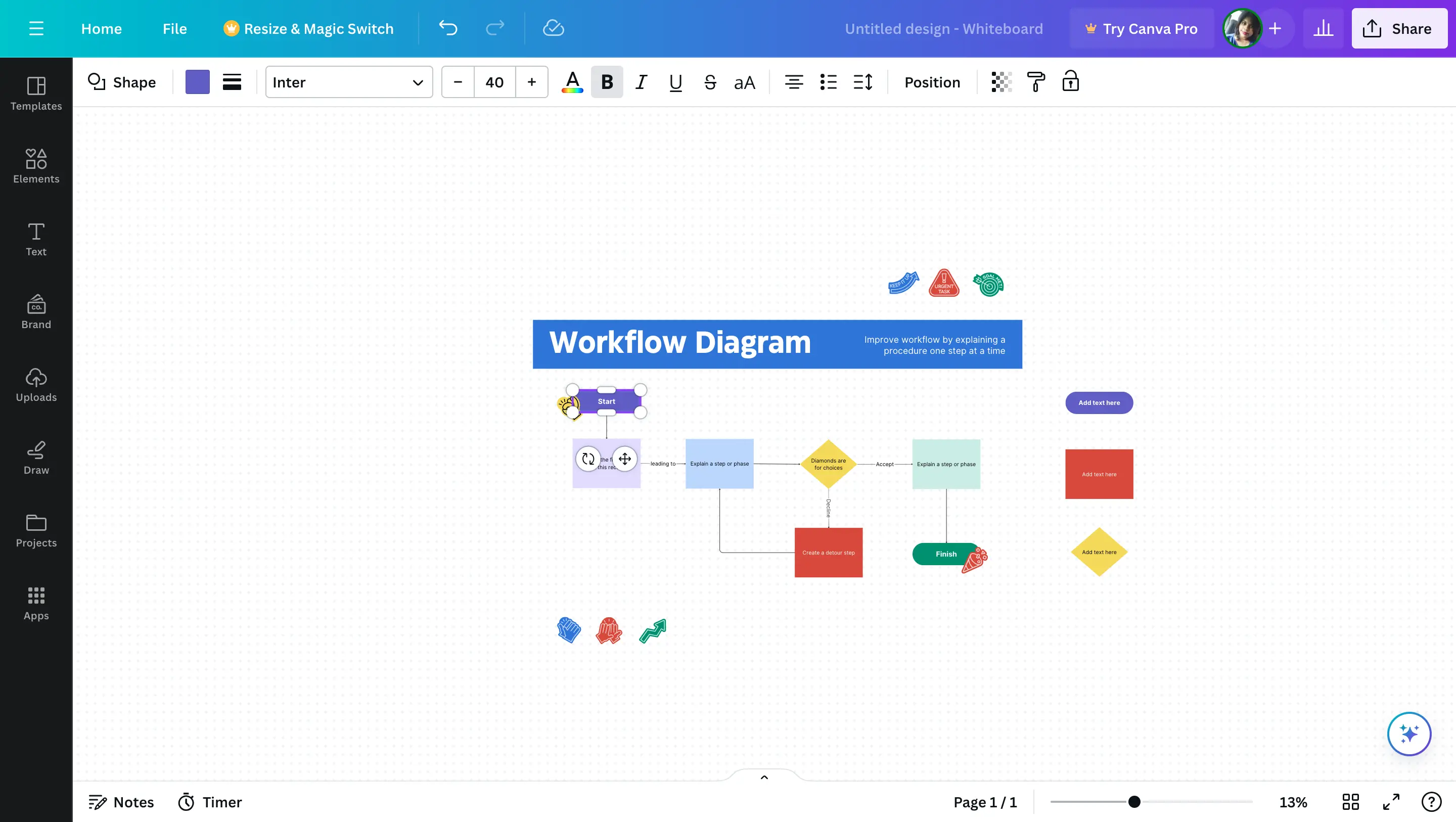
Canva is a design software that also has a flowchart maker. While mainly known for graphics and social media templates, Canva’s flowchart maker allows you to create basic flowcharts. It has basic shapes and templates to get started. Canva’s simplicity makes it a good option for basic flowcharts for presentations or reports.
Features
- Easy-to-use drag and drop interface
- Wide range of shapes, icons and templates
- Real-time collaboration for teams to work together
- Export to PDF, PNG, and JPEG formats
Pros
- Unlimited canvas space
- Intuitive and simple to learn
- Easy to create visually appealing flowcharts for presentations
- Access to a vast library of images and icons
Cons
- Lacks some basic features found in more robust flowchart software
- Limited number of flowchart shapes
- Limited customization options
- Not suitable for complex flowcharts
Pricing
- Canva Free - $ 0
- Canva Pro - $ 6.49 /month per user
- Canva for Teams - $ 12.99 /month total for the first 5 people
Figma
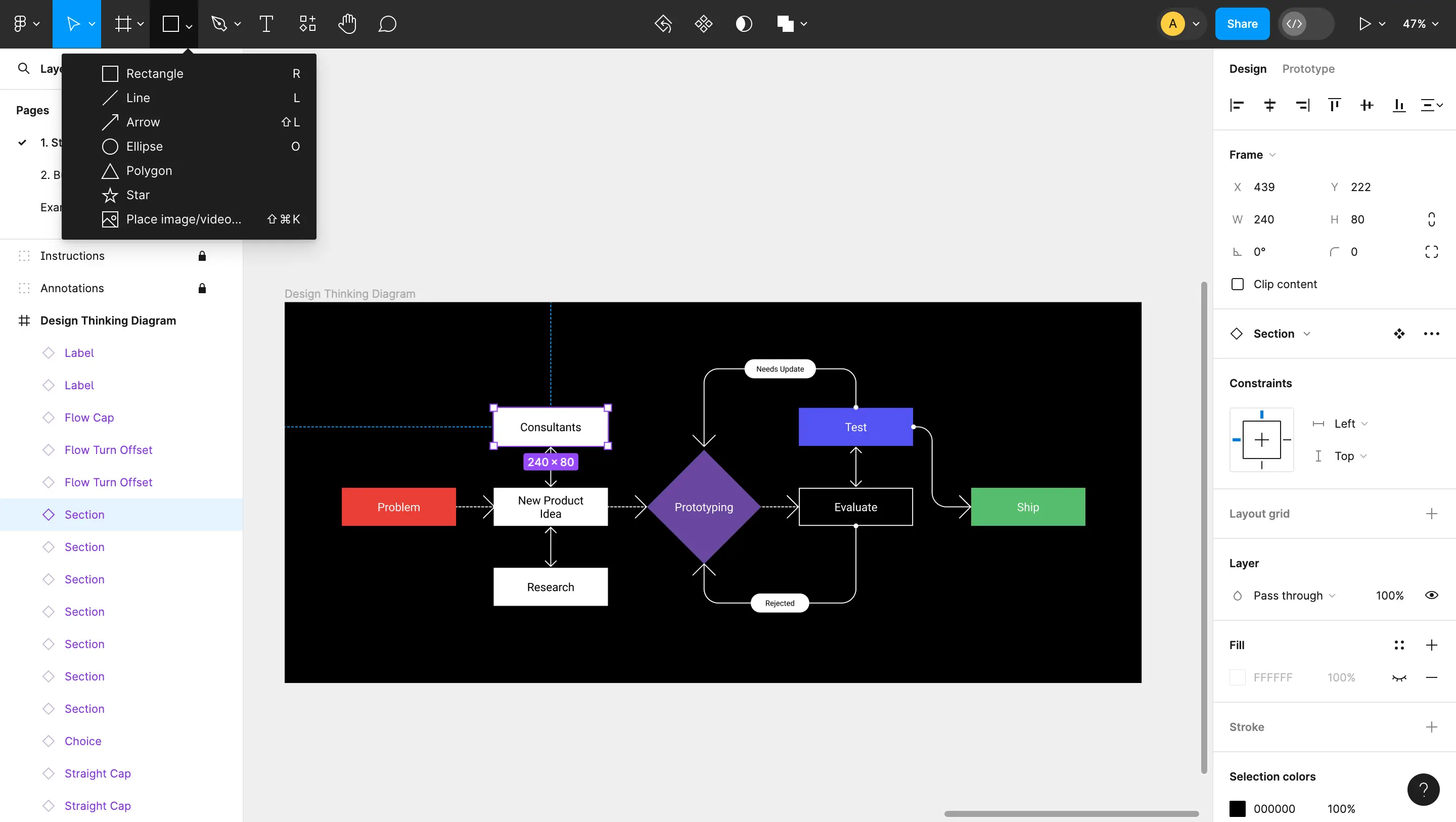
Figma is a digital whiteboard tool that allows for collaborative flowcharting. You can create flowcharts, swimlanes, mind maps and more. Figma’s collaborative features allow multiple people to work on a flowchart at the same time in real time. It has basic and advanced shapes to create detailed flowcharts.
Features
- Real-time collaboration for teams
- Integration with Google Drive, Dropbox and Slack for easy access and sharing
- bility to add text, images, videos and files to diagrams
- Pre-built templates and components for common workflows
Pros
- Easy to use interface that is intuitive and simple to learn
- Collaborative nature allows for team input and feedback
- Integrates well with other design and development tools
Cons
- Some features are only available in premium paid plans
- Limited number of shapes and templates compared to other tools
- Steep learning curve for people new to visual mapping and diagramming
Pricing
- Starter - $ 0
- Professional - $ 12 /month
- Organization - $ 45 /month
- Enterprise - $ 75 /month
SmartDraw
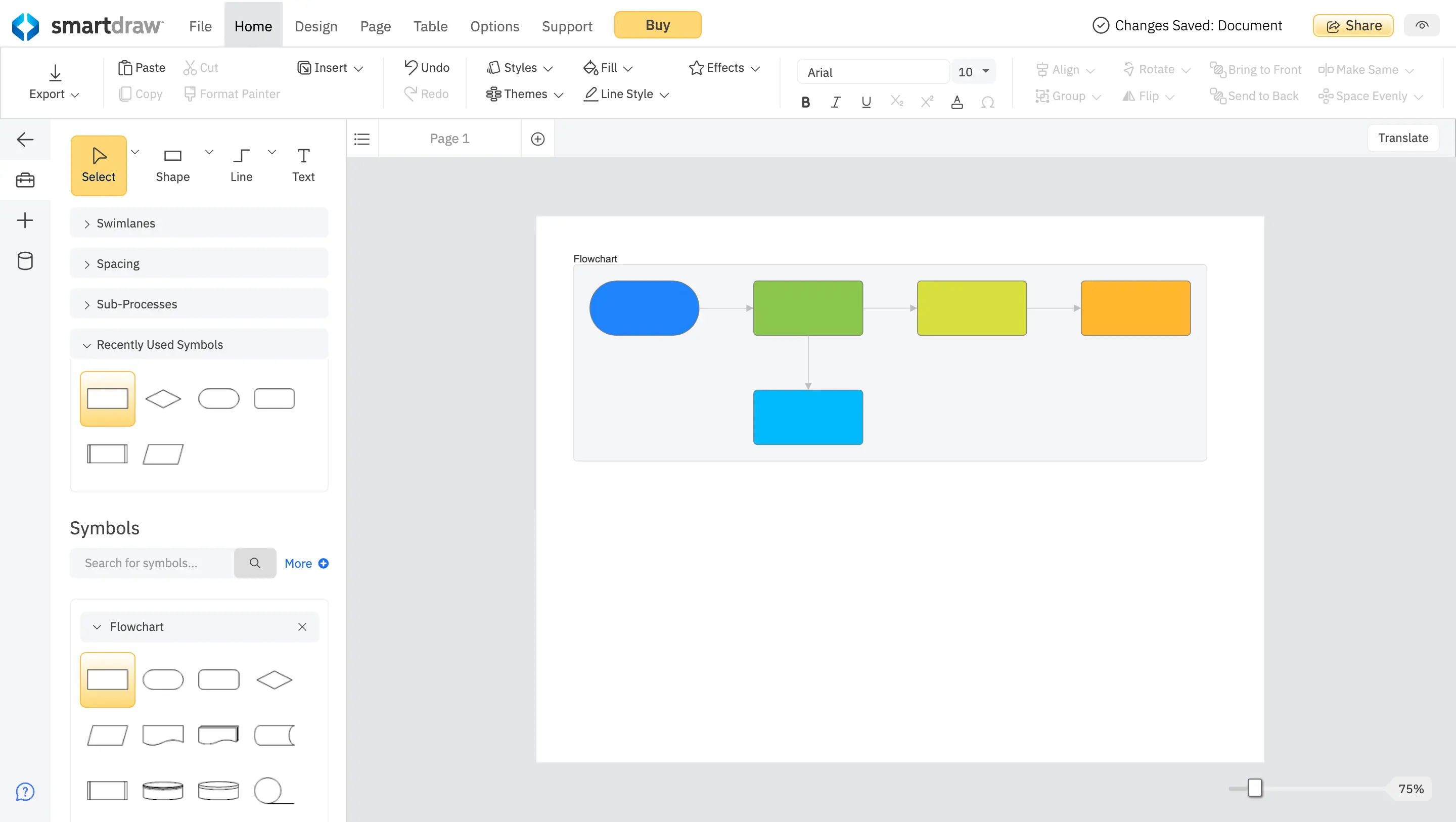
SmartDraw is dedicated flowchart software that has been around for over 20 years. It has hundreds of flowchart templates and shapes to create very detailed and customized flowcharts. SmartDraw also has features like version control and data integration. It is best suited for advanced flowcharting needs.
Features
- Multiple templates and symbols for flowcharts and many other diagram types
- Digramming automation options for quick drawing
- Advanced CAD Drawing capabilities
- Real-time collaboration to work with teams
Pros
- Easy to use interface with drag and drop functionality
- Wide range of templates for different types of diagrams and flowcharts.
- Integrations with Office and G Suite apps for easy import/export of diagrams.
Cons
- The free version has limited functionality.
- Limited support for customizing styles and themes.
Pricing
- Single User - $ 9.95 / month
- Multiple Users - For 3+ users from $ 8.25 / month
Conclusion: Picking the Best Flowchart Software that Suits Your Needs
Overall, these tools provide the essential features needed for creating and sharing professional-looking flowcharts.
Creately stands out as the best tool for createing flowcharts as it strikes a good balance of usability, features, and value, making it a solid all-around choice. Its ease of use and wide range of basic and advanced flowcharting features make it the best overall choice, especially for those just getting started with flowcharts.
Lucidchart offers a simple, easy-to-use interface perfect for beginners. However, its limited set of shapes and templates may not suffice for complex flows. Venngage focuses on visually appealing flowcharts but lacks advanced features for technical workflows. Miro shines for collaborative flowcharting in real time and is better suited for large, complex diagrams. Microsoft Visio is robust but can be overwhelming for users new to flowcharting.
Whimsical offers a simple and easy-to-use interface for creating basic flowcharts but lacks advanced features. ClickUp has project management capabilities in addition to flowcharts, making it a full-featured solution, though it may be overwhelming for simple diagrams.
Canva and Figma are both geared more toward visual and graphic designers rather than business users. While they offer customizable templates and designs, they may not have all the chart types needed for business processes. SmartDraw provides a wide range of chart types and templates along with collaboration, although it has a steeper learning curve than some of the other tools.
Choosing the right product will depend on your specific needs, budget, and preferences around ease of use and advanced functionality.