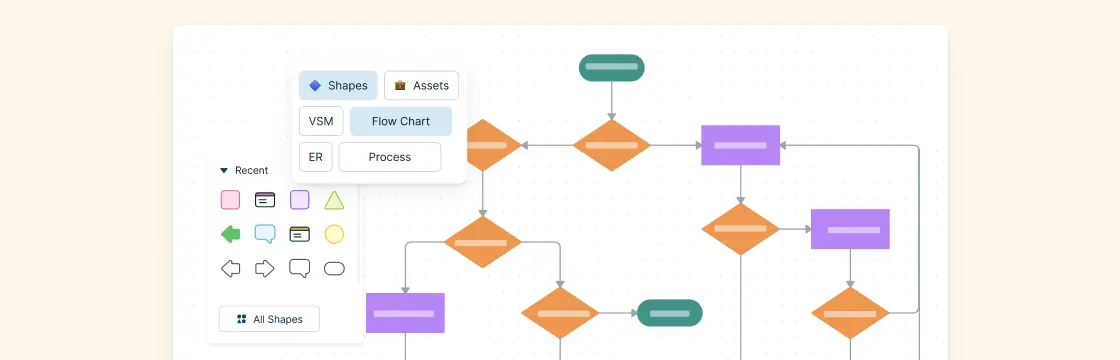
User Flow Diagram Definition
A user flow can refer to the overall navigation paths available in a product, the actual experience of moving through a process, or the specific steps a user takes to complete a task. Tools like flowcharts are effective for visualizing these user journeys within a website or app, helping to trace how users interact with various interface elements and features.
These visualizations are called user flow diagrams (or maps/ user flow chart), and they help designers map out the logical paths users follow, including potential actions, decision points, and outcomes. Depending on the design stage, user flows can vary in detail. For instance, combining them with wireframes results in Wireflows, which represent screen-by-screen navigation. These diagrams are also known as interaction flows, UI flows, navigation flows, or task flows.
How to Create a User Flow Diagram
Step 1: Understand the Customer Journey
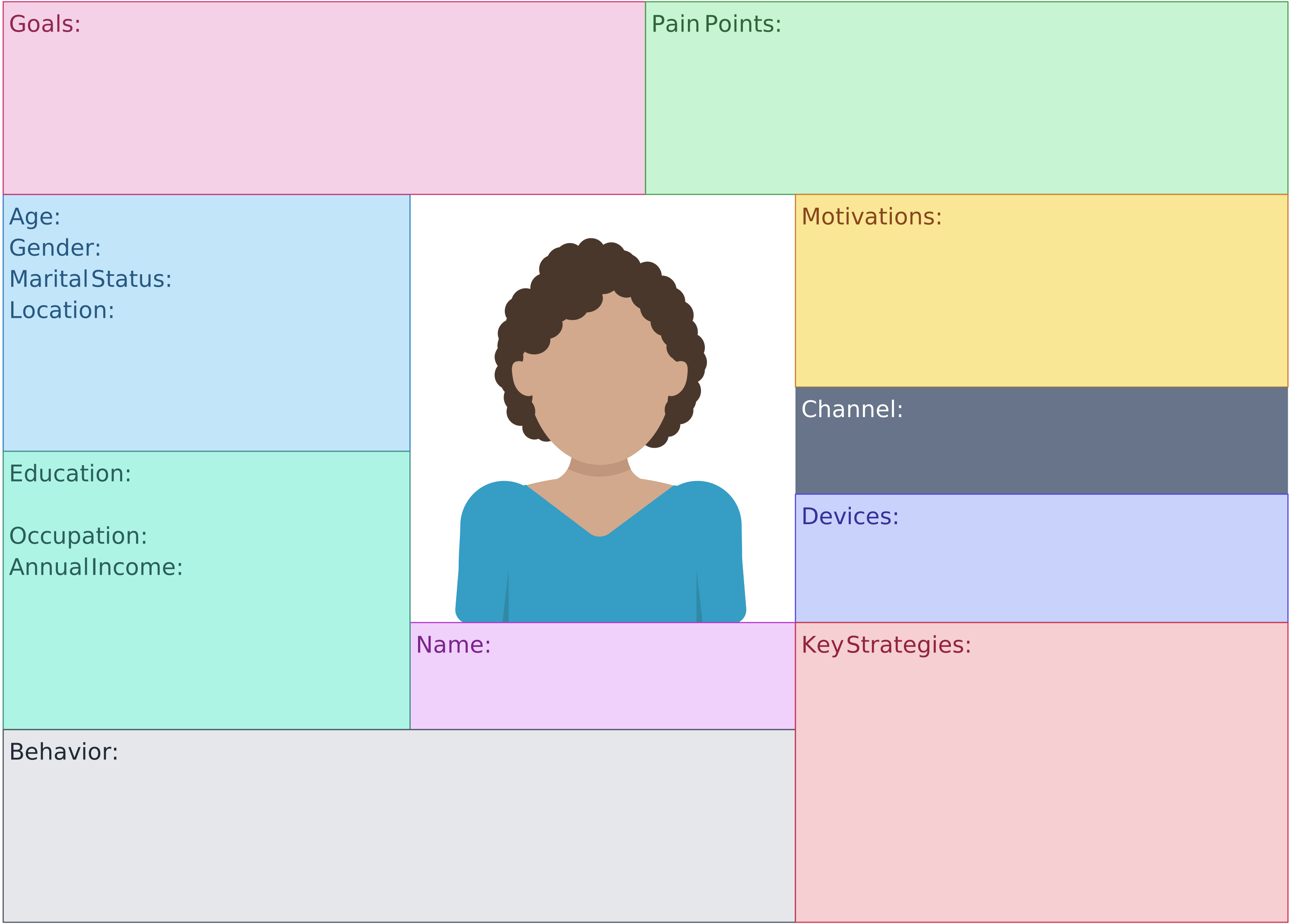
An effective user flow chart starts with understanding the user—who they are, their motivations, needs, and behaviors. Conducting proper user research and creating detailed user personas may seem like extra steps, but they are essential for designing smoother, more intuitive user flows.

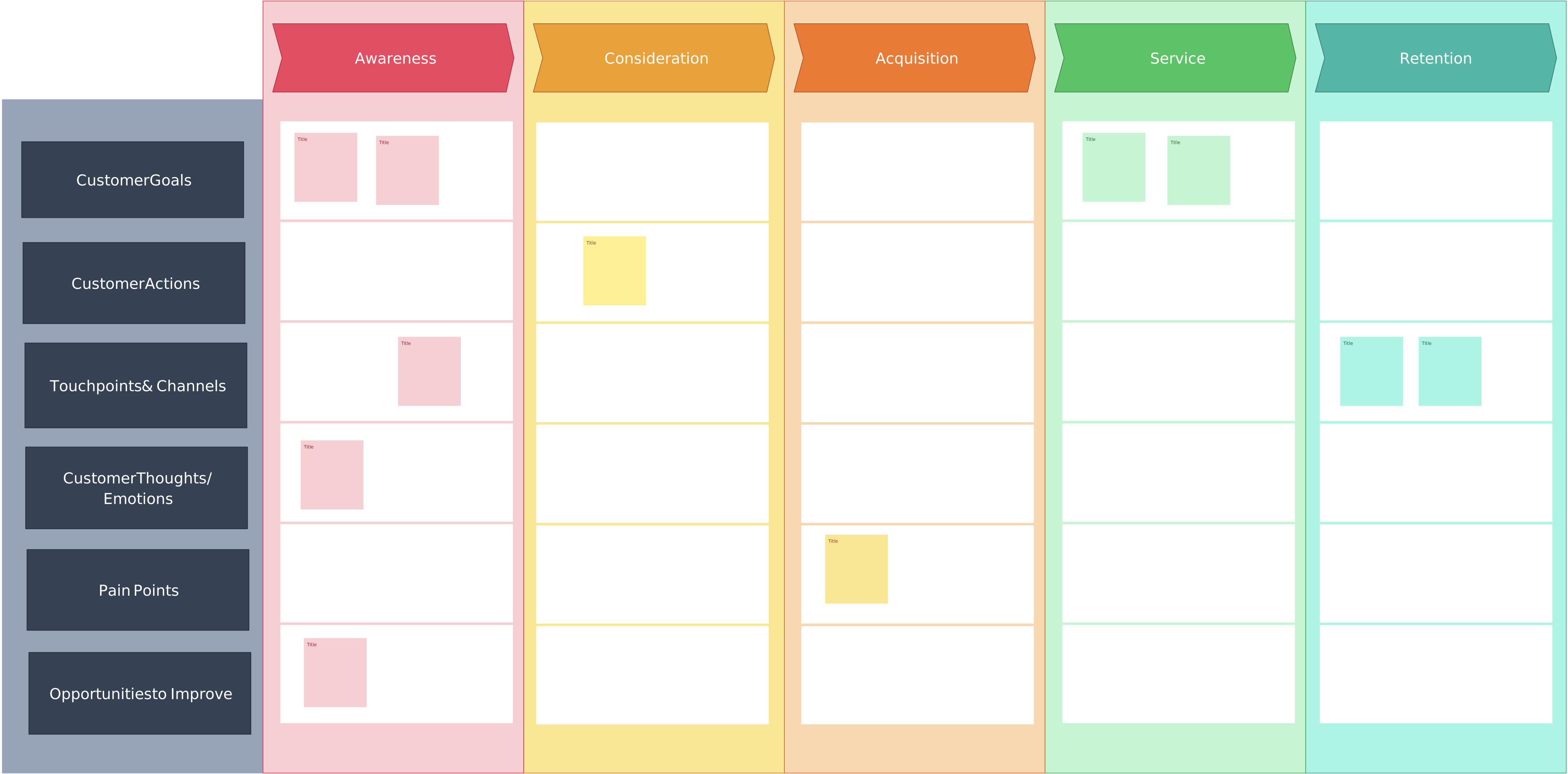
Once you have a clear customer profile, you can better analyze the user’s journey using a customer journey map template you can easily identify what users do, feel, and expect at each stage of their interaction with your product, including key touchpoints and pain points along the way.
Step 2: Identify and align your goal with your user’s goal
Identifying and aligning your goal with the user’s goal is a crucial step in creating an effective user workflow diagram. It ensures that the path you design not only guides users toward completing their tasks but also supports your business objectives
Step 3: Identify Where Your Users are Coming From
If you are designing a website, you may want to know where your customers are coming from or in other words what the entry points are. These usually include,
- Direct traffic
- Organic search
- Social media
- Paid advertising
- Referral sites
- Press or news items
You can use Google Analytics to get the percentages for these entry points. They may also indicate different user behaviors.
And it is important to map out these different user flows based on the different entry points. It’s key to developing a better experience for the users.
Step 4: Identify the Information the Visitor Needs
In order to design the best possible user flow, you need to get into the shoes of your customers.
This means understanding what their needs and motivations are by heart. So you need to know what problems they have, their doubts, and hesitations, what questions they have about the product, and what answers they seek.
Step 5: Visualize Your User Flows
By now you are aware of the users you are creating the user flow for, what their objectives are, and where they are coming from. The next step is to create the UX user flow diagram.
Think of what your users do before and after they visit a particular page on your website. What do they see, and what action do they take to reach their goal? This will help you identify the pages you need to create, what information/ content you need to provide, and how they should be connected to each other.
Step 6: Prototype Your Flow
You can use low-fidelity prototypes wireframes or UI mockups to test out the user flow outlined in the previous step. The prototype helps add more detail to the flow and helps you understand the flow between user actions and content. This will help you validate that your product is designed according to your and your users’ objectives.
Step 7: Review, Refine and Test
You can share your user flow diagrams with stakeholders and discuss where adjustments need to be made. And once a high-fidelity prototype is ready, you can also test it out with actual users. This way you can collect data on each step of the user flow and understand how your users navigate through your product. You can then identify areas for improvement and apply solutions before the release of the final product.
User Flow Diagram Symbols
Understanding the common symbols used in a user flow diagram tool helps you create clear and effective user journeys. When you create a user flow diagram, these symbols represent different steps, actions, and decisions users take.
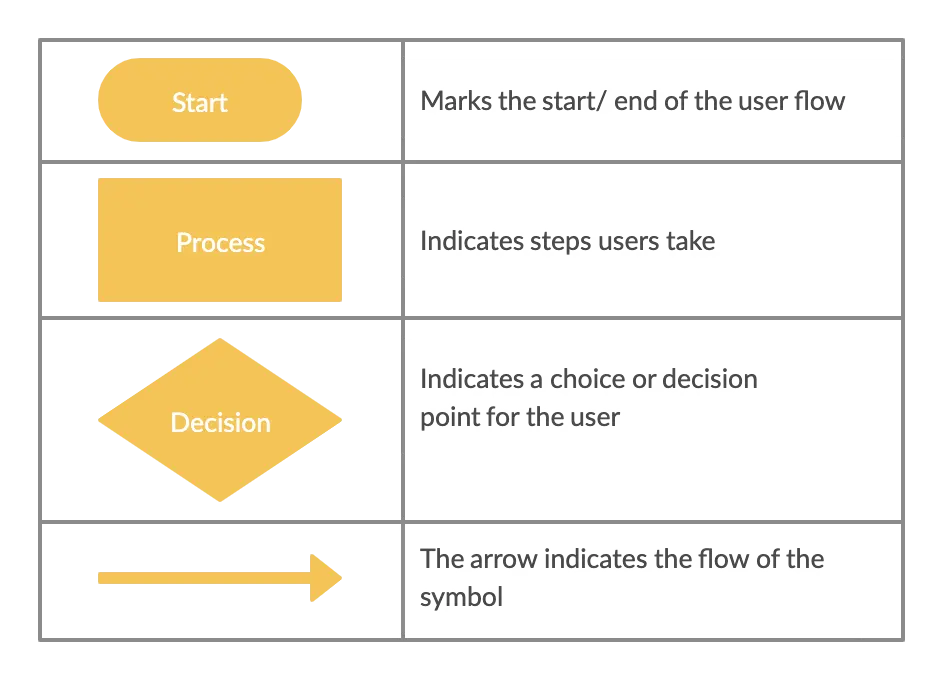
| Symbol | Image | What it means |
| Start / End | Oval | Shows where the user journey begins or ends in a user flow diagram tool. |
| Process / Action | Rectangle | Represents a step or action, such as clicking a button, signing up, or moving to the next page. |
| Decision | Diamond | Shows a choice or branching point, such as yes/no or logged in or not logged in. |
| Input / Output | Parallelogram | Represents information entered by the user or shown by the system. |
| Connector / Arrow | Arrow | Connects steps and shows the direction of the flow in a user flow diagram tool online. |
| Page / Screen | Screen / page shape | Represents a page or screen in a website or app when you create a user flow diagram. |
| Annotation / Note | Note / comment box | Adds extra context, instructions, or comments to explain a step more clearly. |
User Flow Diagram Templates
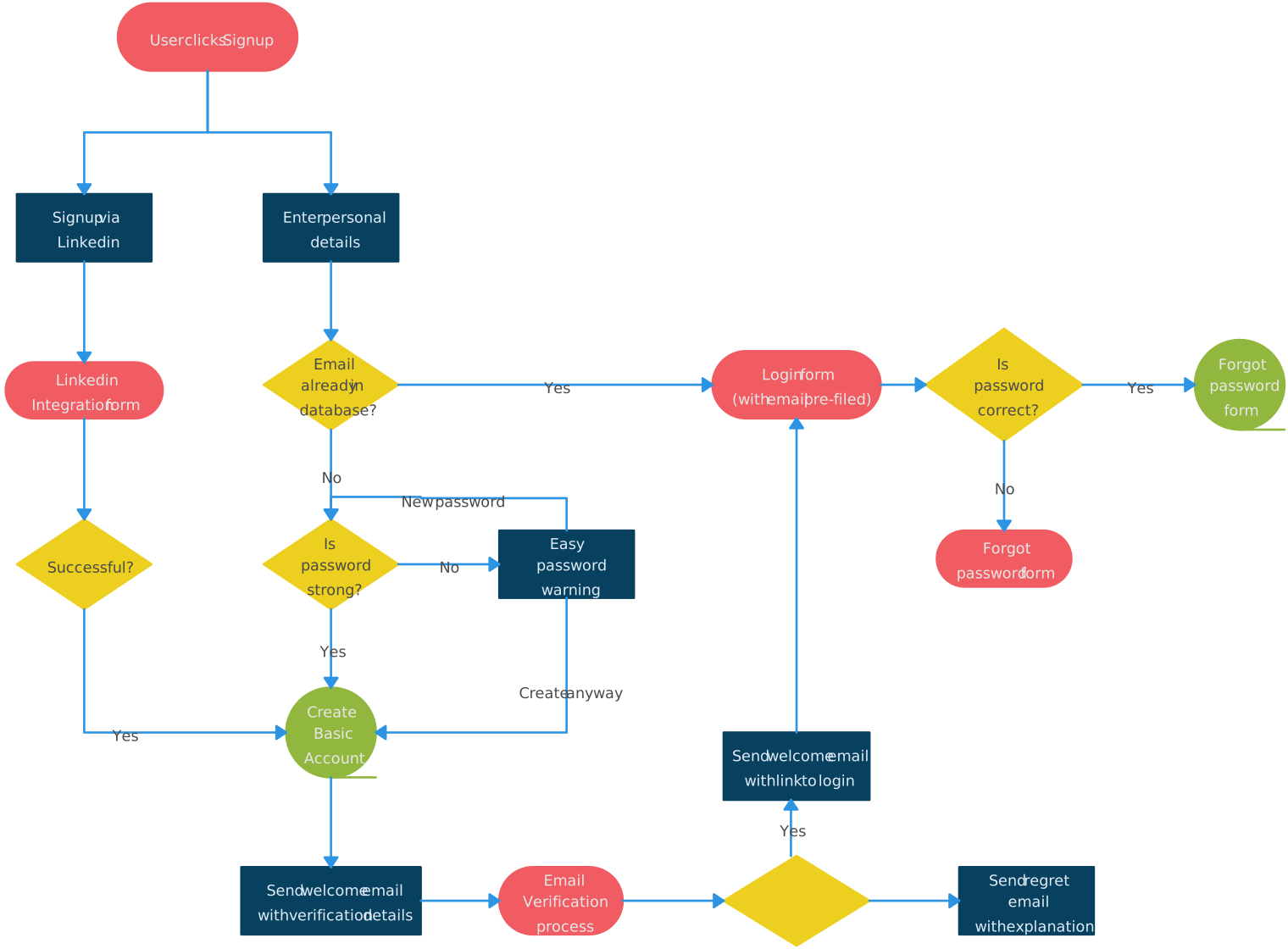
User Registration Flow Diagram
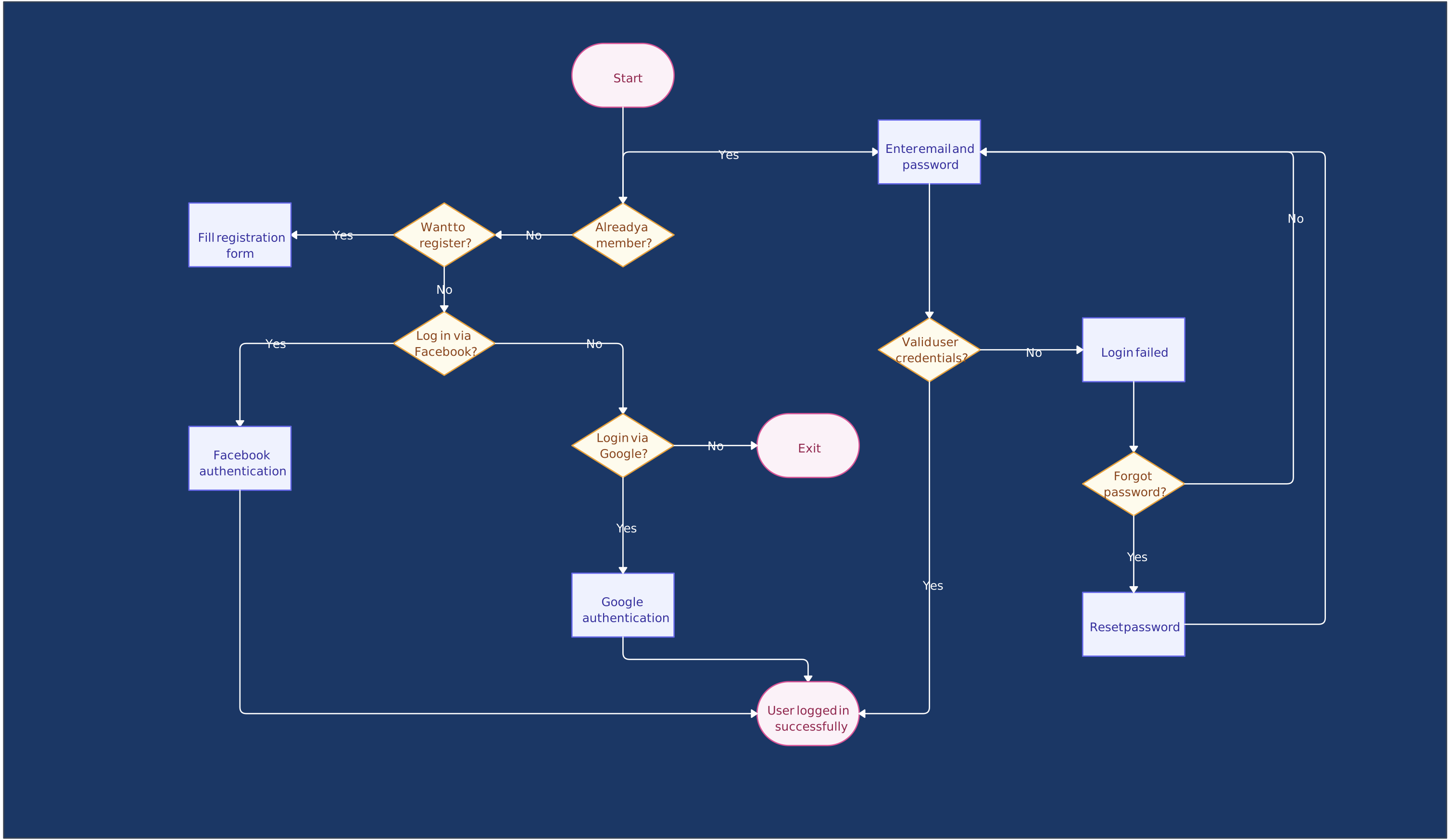
Flow Diagram Example
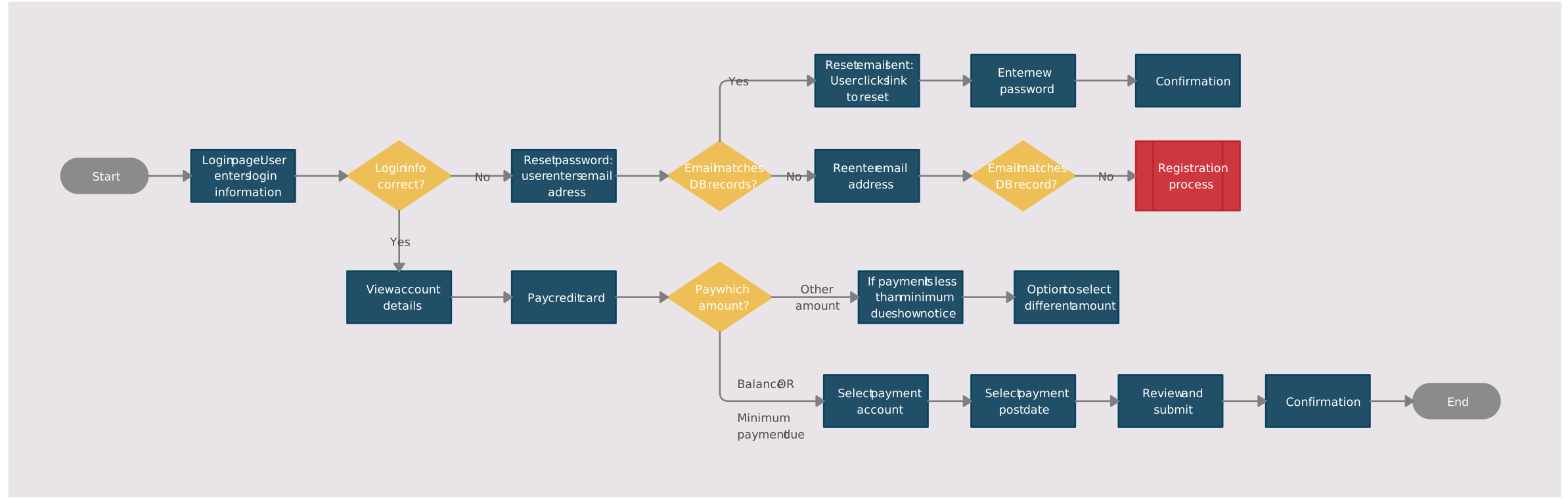
Wireflow Template
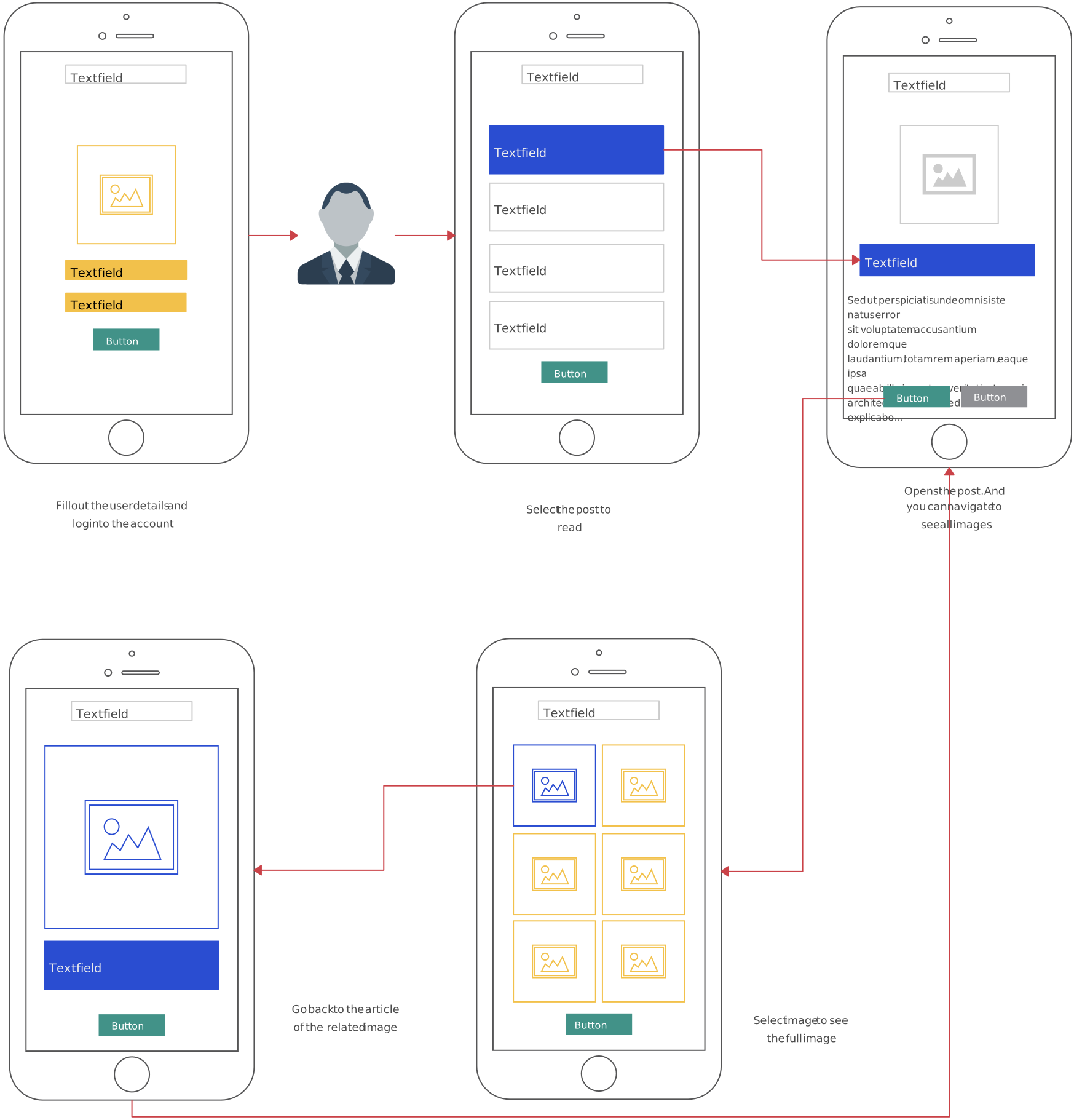
User Registration Flowchart
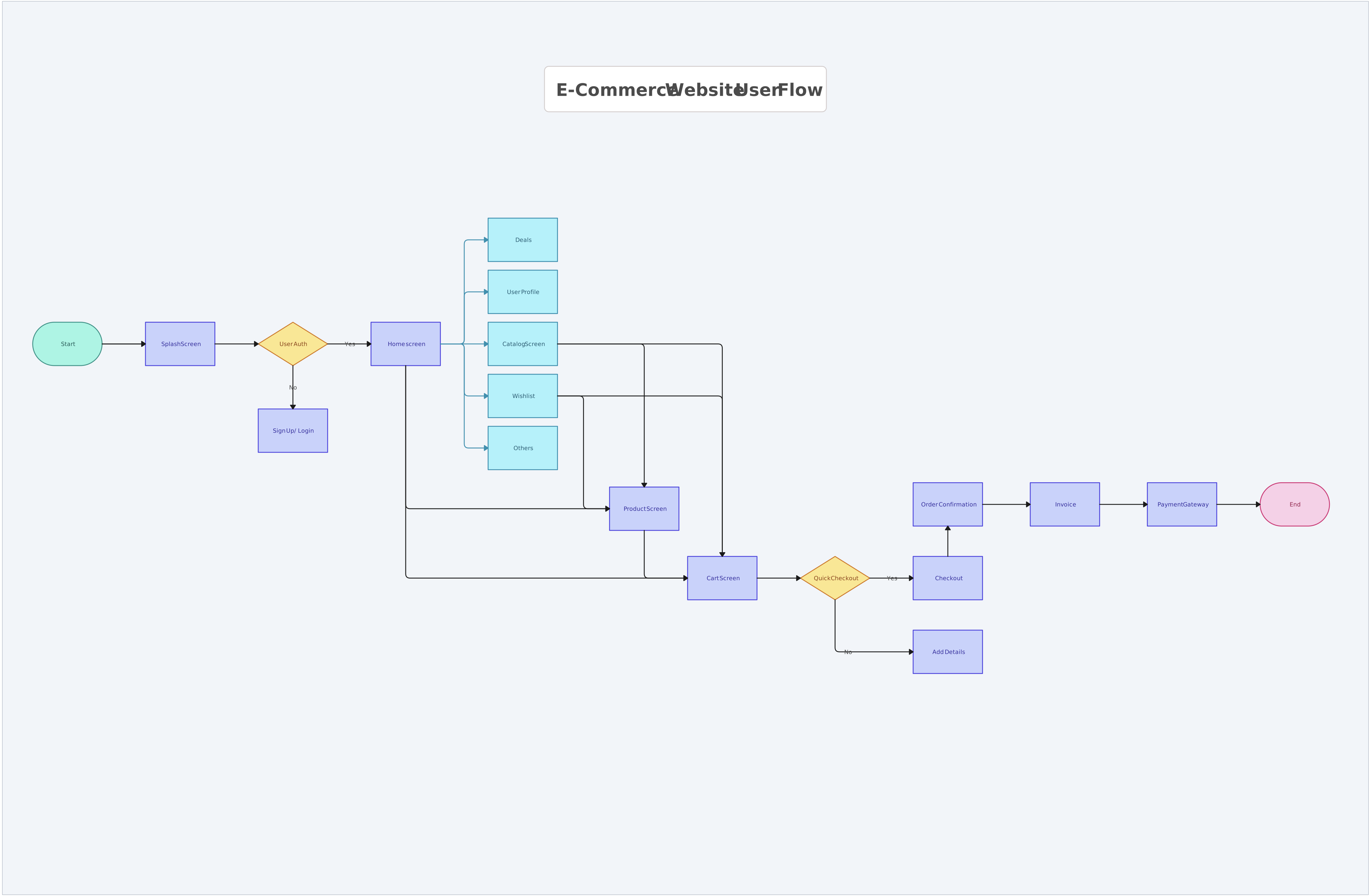
E-Commerce Website User Flow
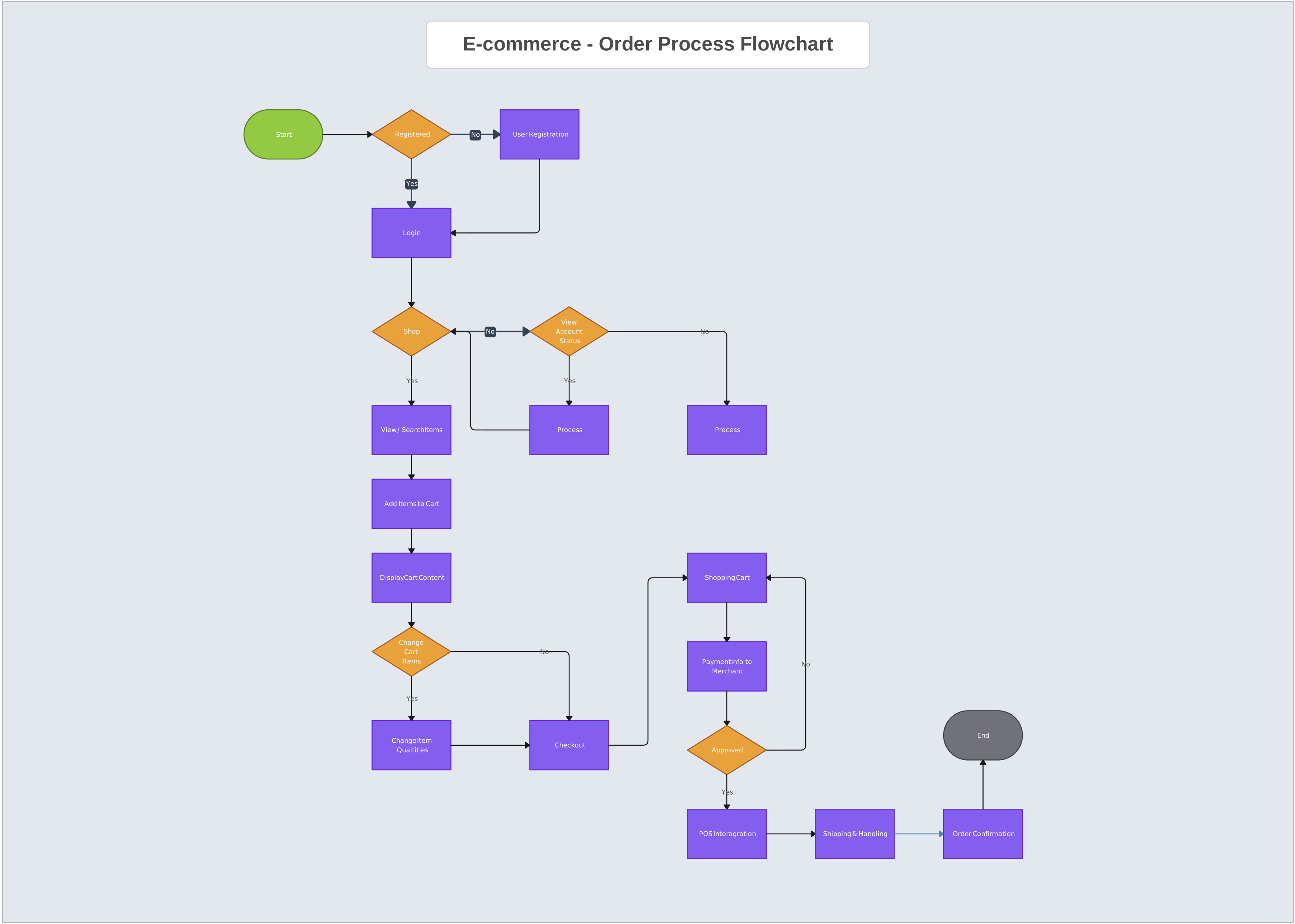
E-Commerce Order Process Flowchart
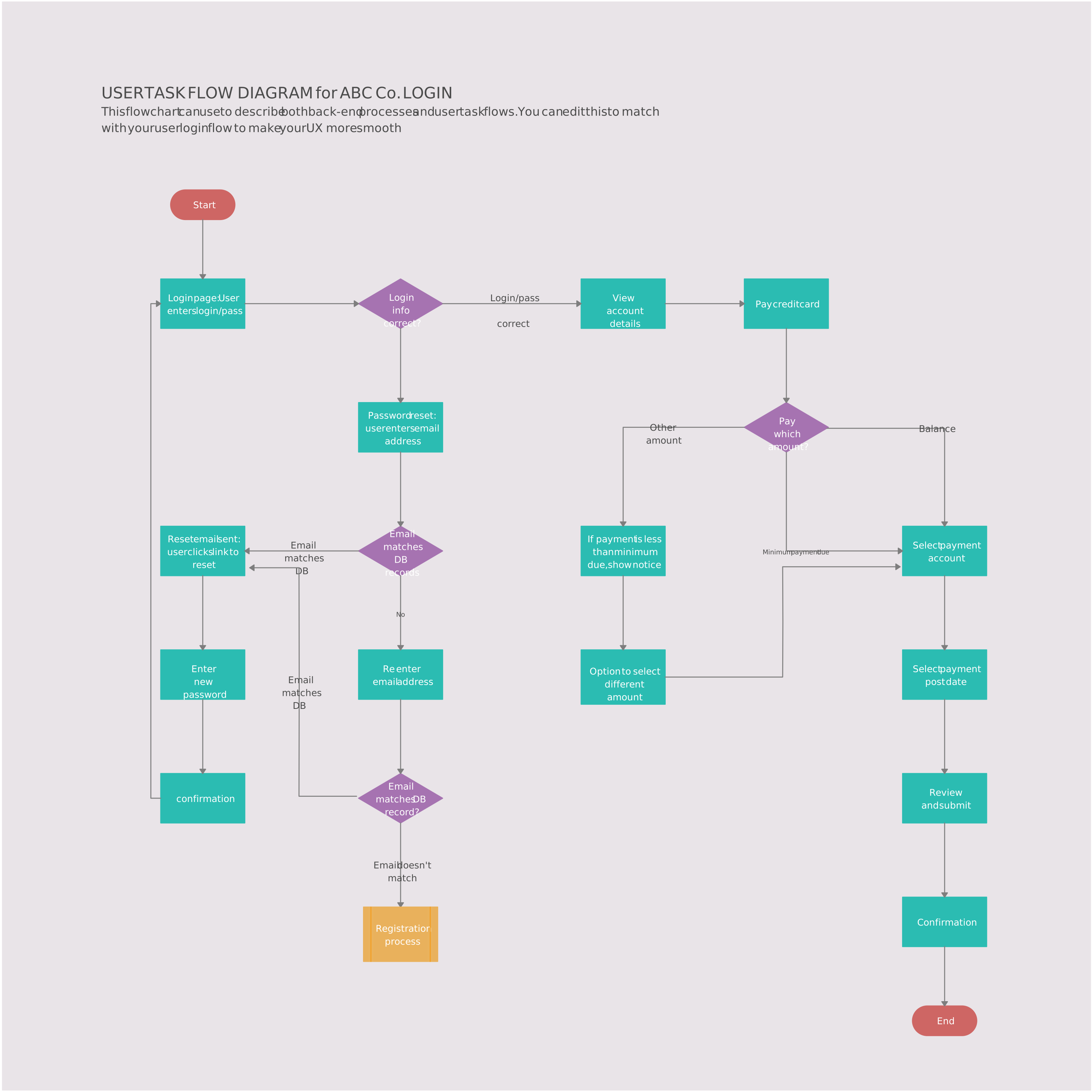
User Flow Diagram Example
FAQ on the User Flow Diagram
What is the role of user flows in UX design?
What are the different types of user flows?
What is the difference between a user flow and a user journey?
What are the major components of a user flow diagram?
Typically a user task flow diagram should represent the following elements.
- A starting point
- Content that is presented to the users
- Actions offered
- The buttons that take the user to the next stage once clicked
- An ending point
Why are user flow diagrams important?
What are the best practices to keep in mind when creating a user flow diagram?
- Name Your Diagram Clearly
- Keep the Flow in One Direction
- Limit Decision Points
- Focus on a Single Task or Goal
- Include Only Essential Information
- Use a Digital Tool Like Creately